
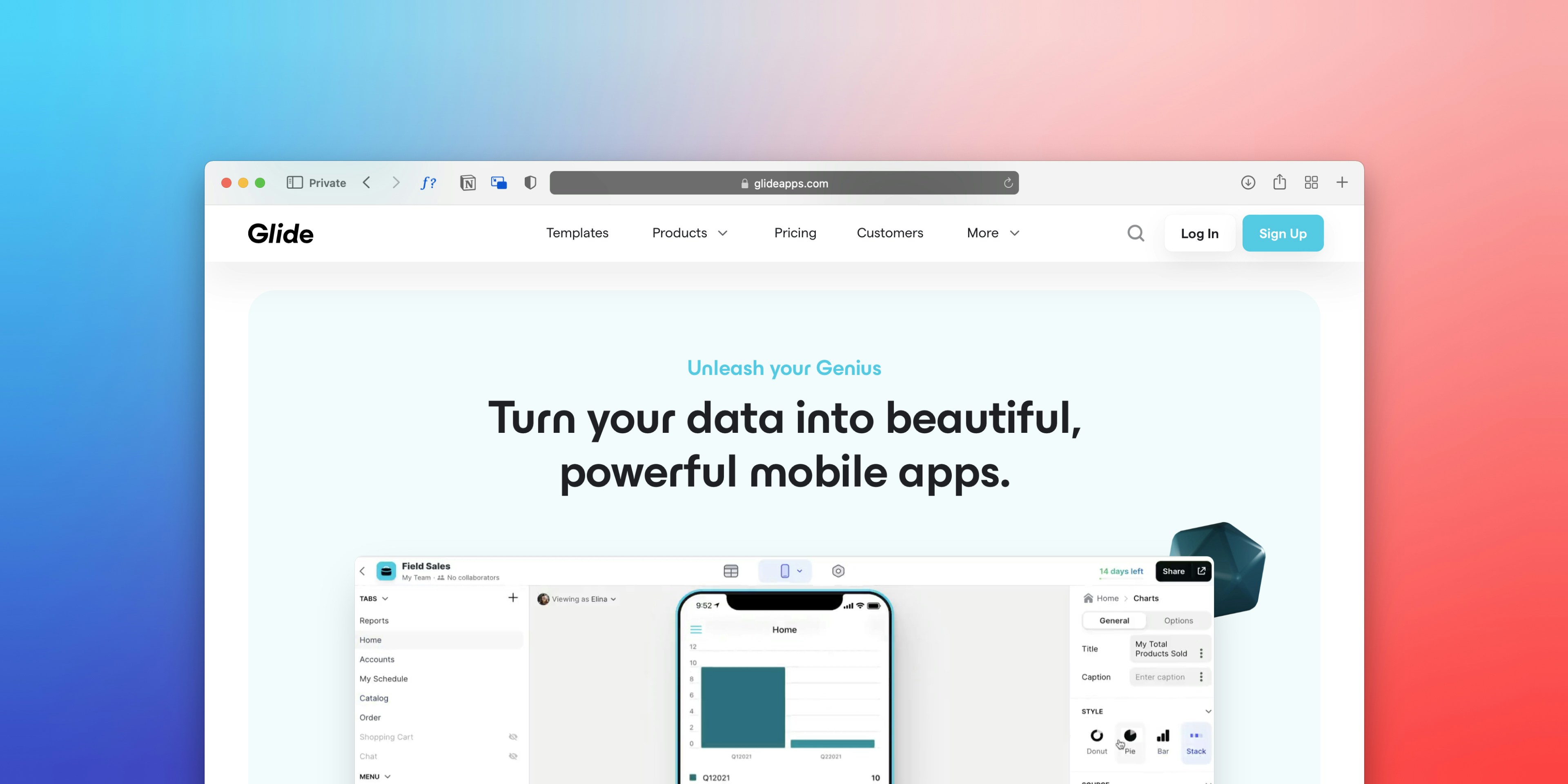
Introduction to Looker Studio and AppSheet
Looker Studio, formerly known as Google Data Studio, is a powerful data visualization tool designed to enable users to easily create interactive and shareable dashboards. Organizations leverage Looker Studio to transform complex data into comprehensible visual formats, thereby making data-driven decisions more efficient. The platform integrates seamlessly with various data sources, allowing users to aggregate and analyze their information in real time. By connecting Looker Studio to AppSheet, users can enhance their data visualization capabilities, ensuring that insights derived from data are presented clearly and effectively.
On the other hand, AppSheet is a no-code application development platform that empowers users to build custom mobile and web applications without needing extensive programming knowledge. Utilizing data from spreadsheets, databases, and other sources, AppSheet facilitates the creation of applications that can automate workflows, collect data, and engage users effectively. The ability to rapidly develop applications equips organizations to adapt swiftly to changing requirements. Integrating Looker Studio with AppSheet allows users to harness the full potential of their data, ensuring that applications are not just functional but also data-driven.
The significance of establishing a connection between Looker Studio and AppSheet extends beyond mere utility. By synthesizing visualization and application development, users can achieve a comprehensive view of their data, fostering informed decision-making and improving overall user experience. This integration paves the way for more dynamic applications that not only house data but also present it in engaging ways. Thus, the collaboration of Looker Studio and AppSheet underscores the importance of cohesive data management across organizational platforms, enhancing productivity and insight generation.
Why Integrate Looker Studio with AppSheet?
The integration of Looker Studio with AppSheet offers significant advantages for organizations seeking to enhance their data management and reporting processes. By connecting Looker Studio to AppSheet, businesses can streamline data access, making it easier for users to analyze and report on critical information without relying on complex data extraction methods.
This integration facilitates improved reporting efficiency by allowing businesses to harness the powerful data visualization capabilities of Looker Studio while leveraging the app-building features of AppSheet. For instance, a sales team can create custom applications that receive real-time sales data, which is visualized through Looker Studio dashboards to help interpret market trends quickly. This immediate access to updated information enables teams to make informed decisions, fostering a culture of data-driven decision-making within the organization.
Moreover, the ability to consolidate various sources of data within Looker Studio enhances analytical capabilities. For example, inventory management apps built on AppSheet can be connected with Looker Studio to provide comprehensive insights into stock levels, sales velocity, and reordering needs. By visualizing this data in Looker Studio, businesses can identify patterns and anticipate inventory requirements, leading to more efficient operations and reduced costs.
Additionally, organizations can use this connection to facilitate real-time decision-making. By harnessing the capabilities of both platforms, teams can respond promptly to changing market conditions or operational challenges. For example, a customer service department could utilize this integration to monitor customer feedback and automatically update their service protocols or product offerings based on data analysis derived from Looker Studio.
In summary, connecting Looker Studio to AppSheet not only streamlines data processes but also enhances reporting efficiency and supports real-time decision-making, ultimately empowering businesses to navigate complexities effectively.
Prerequisites for Connecting Looker Studio and AppSheet
Before embarking on the process to connect Looker Studio to AppSheet, it is essential to ensure that certain prerequisites are in place. Proper preparation will enable a seamless integration experience, enhancing the overall functionality of both platforms.
First and foremost, you must possess active accounts for both Looker Studio and AppSheet. If you do not already have these accounts, you will need to register and set them up individually. Ensure you are familiar with the interfaces of both tools, as this knowledge will facilitate smoother navigation during the linking process.
Additionally, obtaining the necessary API keys is crucial for successful integration. The Looker API allows you to programmatically connect Looker Studio to AppSheet, and you will typically find the option to create API keys within the Looker Studio interface. Similarly, AppSheet requires its own set of API credentials. Make sure to securely store these keys, as they will be needed to authenticate the connection between the two platforms.
Furthermore, appropriate permission settings must be established. In Looker Studio, you should ensure that the datasets you intend to utilize are accessible by the AppSheet application. This may involve configuring permissions for shared access to the data, allowing AppSheet to pull the necessary information from Looker Studio. Likewise, verify that AppSheet has the appropriate permissions to access and manipulate the data that it will receive from Looker Studio.
In summary, a successful connection of Looker Studio to AppSheet hinges on having the requisite accounts, securing API keys, and establishing correct permission settings. With these essentials in place, you will be well-prepared to execute the integration smoothly, ultimately optimizing your workflow and data visualization capabilities.
Step-by-Step Guide to Connect Looker Studio to AppSheet
Connecting Looker Studio to AppSheet involves a systematic approach that ensures a seamless integration between these two powerful platforms. Follow the steps outlined below to achieve a successful connection.
First, begin by logging into both your Looker Studio and AppSheet accounts. Make sure you have administrative rights, as this will facilitate the necessary settings adjustments. After logging in, navigate to your Looker Studio dashboard where you can start creating a new data source. Click on the option to ‘Create’, and select ‘Data Source’ from the dropdown menu.
Next, you will need to select ‘AppSheet’ as the data connector. This step is crucial as it establishes the direct link between Looker Studio and your AppSheet account. Upon selecting AppSheet, a prompt will appear requesting authentication. Enter your AppSheet credentials to allow Looker Studio access to your application data.
Once authenticated, configure the connection by specifying the AppSheet application you wish to connect. You will see an interface where you can select the relevant tables from your AppSheet data that you want to visualize in Looker Studio. It is essential to choose datasets that are both relevant and necessary for your reporting needs.
After selecting the appropriate tables, click ‘Connect’ to initiate the data flow between the two platforms. This process may take a brief moment depending on the amount of data being processed. Following a successful connection, it is vital to verify that data is accurately flowing into Looker Studio. You can do this by creating a basic report using the connected datasets to ensure that all information appears correctly.
Lastly, make any adjustments to the data settings or schemas as needed to optimize the results you wish to achieve. It is important to regularly check the connection settings to ensure continued data synchronization between Looker Studio and AppSheet. This ensures that your reporting tools are always utilizing the most recent information available.
Common Challenges and Troubleshooting Tips
Integrating Looker Studio with AppSheet can yield numerous benefits, including streamlined data analysis and enhanced reporting capabilities. However, users may encounter several challenges during the setup and operational processes. Identifying these common issues and understanding practical troubleshooting methods can significantly reduce downtime and improve overall effectiveness.
One of the most frequently reported problems users face is connectivity issues between Looker Studio and AppSheet. These can arise from incorrect authentication settings, insufficient permissions, or network-related glitches. To resolve connectivity issues, it is essential first to verify that the correct API keys are being used. Ensure that the API key is enabled for both Looker Studio and AppSheet, and check whether any firewall settings might hinder communication between the two platforms. Testing connectivity through integration tools or performing a simple ping can also help diagnose potential network-related hurdles.
Data discrepancies between Looker Studio and AppSheet frequently appear, particularly when there are changes in the data source or when data is synced inconsistently. Users should ensure that data schemas in both applications are compatible and reflect any changes made. Regularly updating the datasets in AppSheet can help maintain synchronization with Looker Studio’s reports. Utilizing the data validation features in both platforms also becomes critical in ensuring that the data integrity remains intact throughout the integration process.
Lastly, users may experience issues with performance and lag when processing large datasets between Looker Studio and AppSheet. To address this challenge, consider optimizing the data models in Looker Studio to reduce complexity and excessive calculations. Implementing filters to gather only the necessary data can also enhance response times when evaluating reports. By proactively addressing these common challenges, users can successfully connect Looker Studio to AppSheet, unlocking the full potential of data visualization and analytics.
Best Practices for Using Looker Studio with AppSheet
Integrating Looker Studio with AppSheet can vastly improve your data visualization and reporting capabilities. To maximize the effectiveness of this integration, it’s essential to follow certain best practices. These guidelines focus on data management, report structuring, and dashboard design, ensuring that users can leverage Looker Studio’s powerful features within AppSheet efficiently.
Firstly, effective data management is crucial. Begin by ensuring that your data is clean and well-organized before connecting Looker Studio to AppSheet. Establish a consistent naming convention for your data fields and maintain standardized formats for similar types of data. This practice simplifies data integration and ensures that users can easily find and utilize the information they need when building dashboards and reports.
Next, when structuring reports in Looker Studio, prioritize clarity and usability. Utilize visualizations that best represent your data, such as charts, graphs, and tables. Avoid cluttering reports with excessive information; instead, focus on presenting key performance indicators (KPIs) that align with user objectives. Use filters to allow users to customize their views based on specific parameters, which helps maintain engagement and relevance.
In addition, designing user-friendly dashboards within AppSheet is essential for achieving effective data utilization. Aim for a clean, intuitive layout that guides users through the information seamlessly. Implement interactive elements, such as dropdowns and buttons, that facilitate navigation and data exploration. By connecting Looker Studio to AppSheet thoughtfully, users can quickly derive insights and make data-driven decisions without confusion.
In conclusion, by adhering to these best practices in data management, report structuring, and dashboard design, you can create a robust environment that enhances the integration between Looker Studio and AppSheet, ultimately enriching users’ analytical experiences.
Case Studies: Success Stories of Looker Studio and AppSheet Integration
The integration of Looker Studio with AppSheet has proven transformative across various industries, as demonstrated by multiple case studies highlighting successful implementations. One notable example comes from a retail company that faced challenges in pinpointing inventory discrepancies and streamlining its supply chain. Prior to using Looker Studio, the organization relied on disparate data sources, leading to inefficiencies and inaccurate reporting. By connecting Looker Studio to AppSheet, the company standardized its data management practices. This integration allowed for real-time inventory analysis, enabling decision-makers to access accurate data through intuitive dashboards created in Looker Studio. As a result, the organization reported a 30% reduction in inventory wastage and a 20% increase in overall efficiency.
Another compelling case involves a healthcare provider that struggled with patient management and appointment scheduling. With each department using separate systems, it was difficult to track patient data and identify bottlenecks in care delivery. By leveraging the powerful features of AppSheet and connecting it to Looker Studio, the provider effectively centralized its patient management system. Real-time analytics presented through Looker Studio helped optimize appointment scheduling and resource allocation. In just three months post-integration, patient satisfaction scores improved significantly due to reduced wait times and enhanced communication.
Lastly, a financial services firm turned to Looker Studio and AppSheet integration to enhance its customer relationship management (CRM) processes. Previously, the firm faced data silos that hindered 360-degree customer visibility. Integrating Looker Studio with AppSheet allowed for streamlined data collection and visualization. The organization developed interactive reports that consolidated customer interactions across multiple channels, leading to better-targeted services. Consequently, they experienced a 25% increase in customer engagement and a noticeable uptick in client retention rates.
These case studies illustrate the significant benefits that can be realized through the integration of Looker Studio and AppSheet, showcasing how organizations can tackle various challenges and enhance overall operational efficiency.
Conclusion: Enhancing Your Data Analytics Experience
Connecting Looker Studio to AppSheet represents a pivotal step in modern data analytics and application development. This integration elevates analytical capabilities by allowing users to leverage data insights seamlessly within their applications. By connecting Looker Studio to AppSheet, organizations can unlock the potential of their data, enabling users to make informed decisions promptly and effectively.
The synergy between Looker Studio and AppSheet enhances user experience significantly. As data accessibility improves, users can interact with real-time data insights without navigating between different platforms. This connection streamlines workflows, ensuring that both technical and non-technical users can operate efficiently while harnessing the power of their data. Furthermore, the ability to visualize analytics directly in applications fosters a data-driven culture within organizations, empowering teams to act swiftly on data insights.
Moreover, this integration optimizes overall efficiency in data-driven tasks. Users can create custom applications that automatically pull in relevant analytics, ensuring that teams are always equipped with the latest information. The reduced need for manual data transfers mitigates errors and saves time, allowing users to focus on analyzing data rather than managing it. As more organizations seek to leverage their data for competitive advantage, exploring the potential of connecting Looker Studio to AppSheet becomes essential.
In conclusion, the integration of Looker Studio and AppSheet not only enhances the user experience but also transforms how data is accessed and utilized within applications. Organizations looking to improve their data-driven strategies should consider this integration to harness the full potential of their data landscape.
Get in Touch for More Assistance
If you are seeking further assistance regarding the process to connect Looker Studio to AppSheet, you have several resources available to you. The integration of these powerful tools can significantly enhance your data analysis and reporting capabilities. Understanding that some users may face challenges during this integration, it is essential to have access to the right support.
One of the primary ways to reach out for assistance is through the dedicated contact page provided by the professional support team. They are equipped to answer specific questions and provide additional guidance regarding the connection of Looker Studio to AppSheet. To initiate contact, you can visit the following link: Contact Us.
Moreover, if you are interested in exploring more about Looker Studio’s capabilities, you may want to check out the service page. This page offers insights into the various reporting functionalities that Looker Studio can provide, translating data into actionable insights. For detailed information, please visit Looker Studio Reporting.
Lastly, for ongoing learning and updates, consider browsing through the blog page dedicated to various topics related to Looker Studio and AppSheet. The blog can serve as a valuable resource for tips, tutorials, and the latest information in the realm of data applications. Visit Blogs to stay informed and explore a wealth of knowledge that may assist you in your integration journey.
Connecting Looker Studio to AppSheet can open up new avenues for data visualization and application development. Do not hesitate to reach out should you require further support or clarity.

