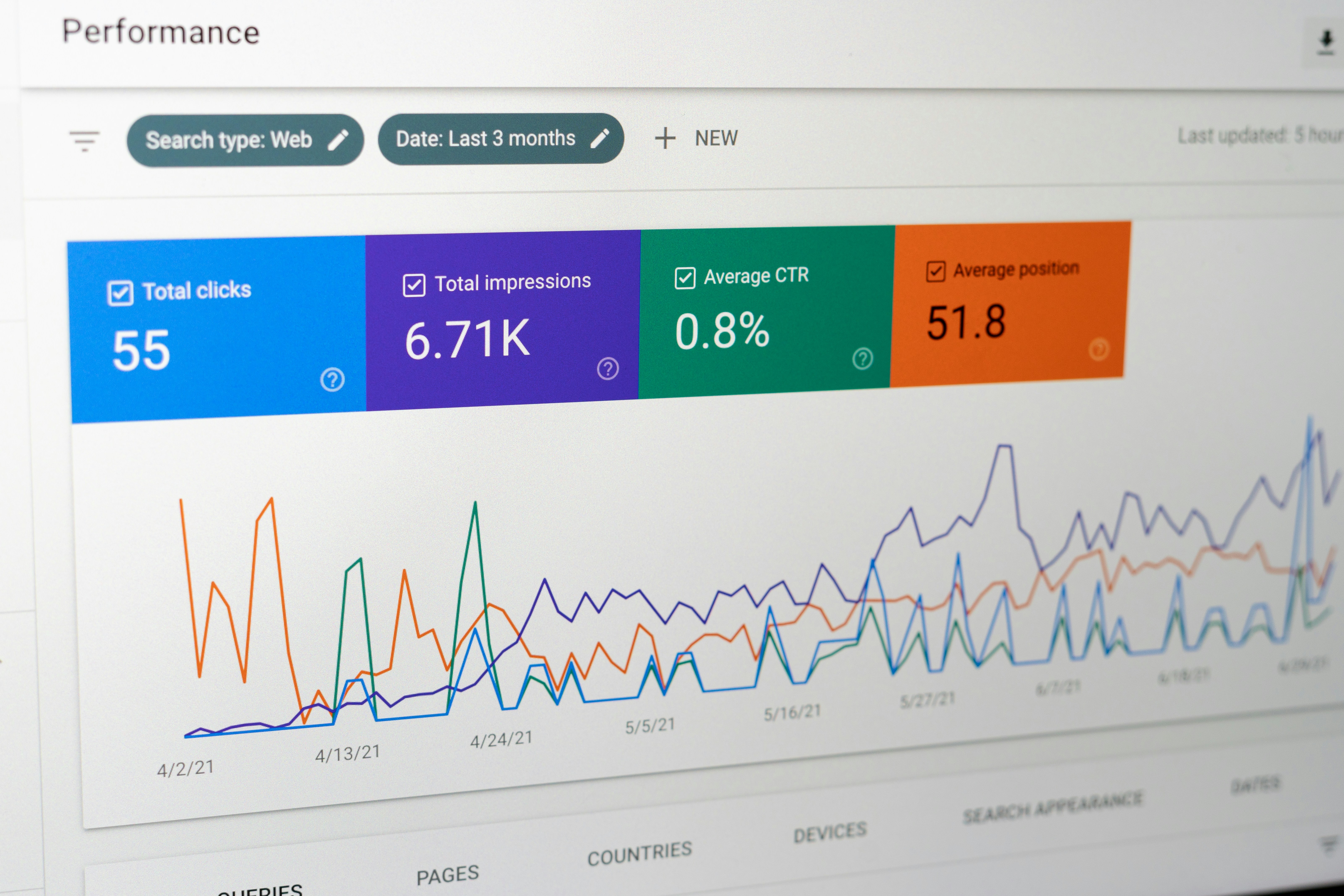
Introduction to Looker Studio and MySQL
Looker Studio, a powerful data visualization tool, enables organizations to gain insights from their data through dynamic dashboards and reports. It facilitates an interactive experience, allowing users to explore data sets from various sources, perform in-depth analysis, and generate visual representations that aid decision-making processes. With features such as drag-and-drop functionality, Looker Studio makes it easy for users, regardless of their technical expertise, to create meaningful visualizations that uncover trends and patterns in their data.
On the other hand, MySQL is a widely used relational database management system (RDBMS) that employs structured query language (SQL) for accessing and managing data. It is known for its robustness, efficiency, and ability to handle large volumes of information. MySQL serves as a central repository for data, making it an essential component for businesses that require reliable data storage solutions. Its compatibility with various programming languages and platforms further enhances its appeal for developers and data professionals.
The integration of Looker Studio with MySQL is crucial for organizations aiming to leverage their data effectively. By connecting Looker Studio to MySQL, users can transform raw data stored in MySQL databases into insightful visualizations. This connection allows for real-time data access, empowering users to create reports and dashboards that reflect the most current information. As a result, organizations can make informed decisions based on up-to-date analytics, ultimately driving business growth and efficiency. This synergy between Looker Studio and MySQL allows for a streamlined workflow in data analysis, enabling users to visualize and interpret complex data sets with ease.
Prerequisites for Connecting Looker Studio to MySQL
Establishing a connection between Looker Studio and MySQL requires several essential prerequisites to ensure a seamless integration process. First and foremost, users need to have a properly configured MySQL database. This involves setting up the database server, creating the necessary databases, and granting appropriate user permissions that allow Looker Studio to access the data. It is crucial to ensure that the MySQL user has the appropriate privileges, such as SELECT, INSERT, and UPDATE, on the desired database tables.
Next, a Looker Studio account is necessary for establishing the connection. Users must either create a new account or ensure that their existing account is correctly configured to utilize database connectors. The account should be associated with a valid Google account, as Looker Studio relies on Google’s authentication services. Additionally, a verified email address should be linked to the account to facilitate any required notifications and updates regarding the connection process.
Furthermore, to connect Looker Studio to MySQL effectively, it is essential to have the appropriate software and drivers installed on your system. Specifically, Looker Studio requires the MySQL ODBC (Open Database Connectivity) driver to facilitate the data retrieval process. Users should download the driver from the MySQL official website and ensure it is correctly installed on their machine. Properly configuring the ODBC driver, including setting the data source name (DSN) and specifying server connection details, is critical for establishing a stable connection.
In summary, users must have a fully configured MySQL database, an active Looker Studio account, and the necessary MySQL ODBC drivers installed to successfully connect Looker Studio to MySQL. Meeting these prerequisites will enable users to harness the full potential of Looker Studio for data visualization and analysis.
Step-by-Step Guide to Connecting Looker Studio to MySQL
Connecting Looker Studio to MySQL is essential for effectively analyzing data stored in your MySQL database. This guide outlines the step-by-step process for establishing this connection, ensuring a seamless integration.
Begin by logging into your Looker Studio account. Navigate to the home page and look for the “Create” button located in the upper left corner. Click on it, and from the drop-down menu, select “Data Source”. This action will direct you to a list of available data connectors. Look for “MySQL” and select it to initiate the connection process.
Once you have selected the MySQL connector, you will be prompted to enter the connection details. This step is crucial as it requires accurate information to successfully connect Looker Studio to MySQL. Fill in the required fields such as the host name, database name, and port. Additionally, enter your MySQL username and password. Ensure that your database user account has the necessary permissions to access the data you intend to analyze.
After completing the credential fields, look for the option to test the connection. It’s a good practice to verify the entered information to avoid errors during data extraction. Click the “Test Connection” button; if all details are correct, you should see a confirmation message indicating a successful connection. In the event of an error, double-check your credentials and ensure that the MySQL server is operational and accessible from your network.
Once the connection is established, proceed to configure additional settings as necessary. This may include selecting specific tables or views from your database that you wish to analyze within Looker Studio. After configuring the settings to your preference, click “Add” to finalize the connection. You can now start building reports using your MySQL data in Looker Studio, making informed decisions backed by your analyzed data.
Best Practices for Data Visualization in Looker Studio
Once you have successfully established a connection between Looker Studio and MySQL, it is critical to apply best practices in data visualization to ensure that the insights gleaned from the data are effective and actionable. The first step in creating effective visualizations is selecting the right type of chart or graph that best represents the data at hand. For instance, time series data is ideally displayed using line graphs, whereas categorical data may be better represented through bar charts. Understanding the nature of your data will guide these choices, ensuring that your visualizations communicate the intended message clearly.
Another essential practice involves the judicious use of filters within Looker Studio to facilitate user interaction with the data. By implementing filters, users can customize their views and drill down into specific data points that interest them. However, it is important to avoid overwhelming users with excessive filtering options. Instead, focus on incorporating the most critical filters that align with the goals of the visualization. This not only enhances user engagement but also streamlines the decision-making process by directing attention to the most relevant data.
Additionally, when designing dashboards in Looker Studio, strive to create a layout that enhances narrative flow and clarity. Employ consistent color schemes and typography that align with your organization’s branding, which in turn assists users in processing the information presented. Organizing data into logical sections or categories will also help in crafting a cohesive story, ultimately making it easier for stakeholders to interpret the underlying trends and insights. Careful consideration of whitespace can further improve readability, allowing the viewer’s eye to rest and focus on the most critical information. By integrating these best practices, you can create effective and engaging visualizations that make your connection to MySQL via Looker Studio truly powerful.
Common Issues and Troubleshooting Tips
When connecting Looker Studio to MySQL, users may encounter various challenges that can impede data analysis. Understanding these common issues and their resolutions can enhance the user experience significantly. One pervasive problem involves connectivity issues, where the Looker Studio fails to establish a connection to the MySQL database. This may often be due to incorrect server details, such as hostname, port, or credentials. To troubleshoot, double-check the database connection parameters, ensuring the MySQL server is reachable from the Looker environment.
Another frequent challenge is related to data access permissions. After successfully linking Looker Studio to MySQL, users might find that they cannot view specific datasets or tables. This situation typically stems from inadequate permissions assigned to the MySQL user being used. To address this, review the privileges granted to the MySQL user and ensure that it has the appropriate rights to access the required tables and perform necessary actions, like SELECT and INSERT operations.
Configuration errors can also hinder the functionality of Looker Studio when working with MySQL. For instance, users may misconfigure the Looker connection settings, failing to reflect the structure of the MySQL database accurately. It is critical to verify that the correct database schema is defined within Looker Studio, as discrepancies may lead to incorrect data retrieval. Additionally, if the MySQL instance utilizes SSL encryption, ensure that the Looker Studio connection has the appropriate SSL settings configured.
Ultimately, being aware of these common issues related to Looker Studio’s connection to MySQL can significantly expedite troubleshooting. By carefully reviewing connection parameters, user permissions, and configuration settings, users can mitigate many of the hurdles encountered when synchronizing data from MySQL into Looker Studio.
Enhancing Looker Studio Reports with SQL Queries
Looker Studio is a powerful data visualization tool that can be significantly enhanced by leveraging SQL queries to retrieve, filter, and aggregate data from a MySQL database. By mastering SQL, users can create reports that not only display data but also transform it into actionable insights tailored to their specific business objectives. When connecting Looker Studio to MySQL, the ability to write effective SQL queries becomes paramount for maximizing the value of the data.
The first step in enhancing Looker Studio reports is to understand the underlying SQL syntax and how it interacts with MySQL. SQL queries can be structured to ensure that only relevant data is returned, thus improving the performance of the reports. For instance, using the SELECT statement allows users to specify only the columns needed, which can streamline the data retrieval process. Furthermore, the inclusion of the WHERE clause helps to filter results based on certain conditions, making it easier to focus on specific datasets pertinent to business needs.
In addition to filtering, SQL queries facilitate data aggregation through functions such as COUNT, SUM, AVG, and GROUP BY. These functions play a vital role in summarizing large data sets, providing a high-level overview that can guide decision-making. By effectively using these functions, users can create reports in Looker Studio that highlight key performance indicators and trends, which are essential for strategic planning.
Moreover, combining multiple SQL functionalities allows for advanced reporting capabilities. For example, users can join multiple tables to correlate data from different sources, providing a more comprehensive view of the business landscape. Understanding how to construct these queries is essential for anyone looking to enhance their Looker Studio reports meaningfully.
Ultimately, connecting Looker Studio to MySQL through well-crafted SQL queries empowers users to produce insightful reports that align closely with their organizational goals, thus making informed decisions based on accurate and relevant data.
Case Studies: Successful Implementations of Looker Studio with MySQL
Numerous organizations have effectively implemented Looker Studio in conjunction with MySQL, showcasing remarkable enhancements in data analysis and decision-making processes. One notable example is a retail chain that utilized this combination to refine its inventory management. By connecting Looker Studio to its MySQL database, the chain was able to aggregate vast amounts of sales data across various locations. The insights derived from this data enabled them to optimize stock levels, reducing excess inventory by 20% while increasing product availability during peak seasons.
Another compelling case involves a healthcare provider that sought to improve patient care through data-driven decisions. By integrating Looker Studio with MySQL, the institution could analyze patient records and treatment outcomes more effectively. This integration facilitated the identification of trends and patterns that were previously obscured by manual data entry and analysis. The organization reported a significant reduction in patient wait times and an overall improvement in service delivery, with a satisfaction rate climbing to 95% post-implementation.
Additionally, a financial services firm demonstrated the power of Looker Studio connected to MySQL for risk assessment and reporting. By consolidating transaction data within their MySQL database, the firm was able to create real-time dashboards through Looker Studio. These dashboards provided critical insights into potential risk areas, enabling the firm to make timely and informed decisions. The successful rollout of this system resulted in enhanced compliance with regulatory standards and improved overall operational efficiency.
These case studies exemplify the tangible benefits that organizations can achieve by implementing Looker Studio with MySQL. The ability to connect Looker Studio to MySQL not only streamlines data management processes but also enhances a company’s capacity to make evidence-based decisions, leading to improved operational performance across various sectors.
Resources for Learning More
As you embark on the journey of connecting Looker Studio to MySQL, it is beneficial to explore various resources that can enhance your understanding of both platforms. Numerous documentation sites, online tutorials, and community forums exist to support your learning experience. Below are some recommended resources that you may find particularly useful.
Firstly, the official documentation for Looker Studio is a comprehensive guide that covers essential setup processes, including connecting Looker Studio to MySQL. It provides detailed explanations of features, data models, and best practices, making it easier for users to grasp the nuances of the software effectively.
Additionally, MySQL Documentation is an invaluable resource for users seeking a deeper understanding of database management, SQL queries, and optimization techniques. Familiarity with MySQL’s specifics can significantly streamline the process of data extraction and visualization when coupled with Looker Studio.
For those who prefer hands-on learning, various platforms such as Udemy and Coursera offer courses specifically focused on Looker Studio and MySQL integration. These courses often include practical examples and exercises, cementing theoretical knowledge through practice.
Community forums such as Stack Overflow and the Looker Community can be excellent platforms for troubleshooting and connecting with other users. Engaging with these communities can provide insights into common challenges and effective solutions while learning from experienced professionals.
Finally, consider attending webinars offered by various tech organizations and Looker itself. These webinars often feature live demonstrations and Q&A sessions, offering valuable insights into advanced topics such as data visualization and reporting.
Utilizing these resources can significantly enhance your ability to connect Looker Studio to MySQL effectively, thereby improving data analysis and decision-making processes.
Conclusion and Next Steps
Connecting Looker Studio to MySQL is a pivotal step for businesses seeking to harness the power of data visualization and reporting. Throughout this guide, we have explored the essential components of the integration process, from understanding the prerequisites to the actual configuration. The importance of establishing a stable connection between Looker Studio and a MySQL database cannot be overstated, as it empowers users to generate insightful reports and facilitate data-driven decision-making.
To recap, we emphasized that users need to ensure proper access permissions, as well as the installation of necessary drivers to facilitate the connection. Additionally, we outlined the steps for creating connections within Looker Studio, allowing seamless data retrieval from MySQL. By successfully implementing these procedures, users can visualize their data more effectively, unlocking new opportunities for analysis and strategic planning.
As you move forward, we encourage you to take actionable steps towards connecting Looker Studio to your MySQL database. Begin by reviewing your access permissions and technical requirements, then follow the steps outlined in this guide to embark on your integration journey. Should you encounter challenges along the way, do not hesitate to reach out for assistance. Our dedicated support team is available via the contact page for any queries you may have.
For further learning opportunities, we recommend exploring our service page, which outlines various support offerings tailored to enhance your data connectivity experience. Additionally, we invite you to visit related articles on our blog that dive deeper into data visualization techniques, optimizing MySQL performance, and maximizing the utility of Looker Studio. By doing so, you can enhance your knowledge and fully leverage the analytical capabilities at your disposal.