
Introduction to Looker Studio
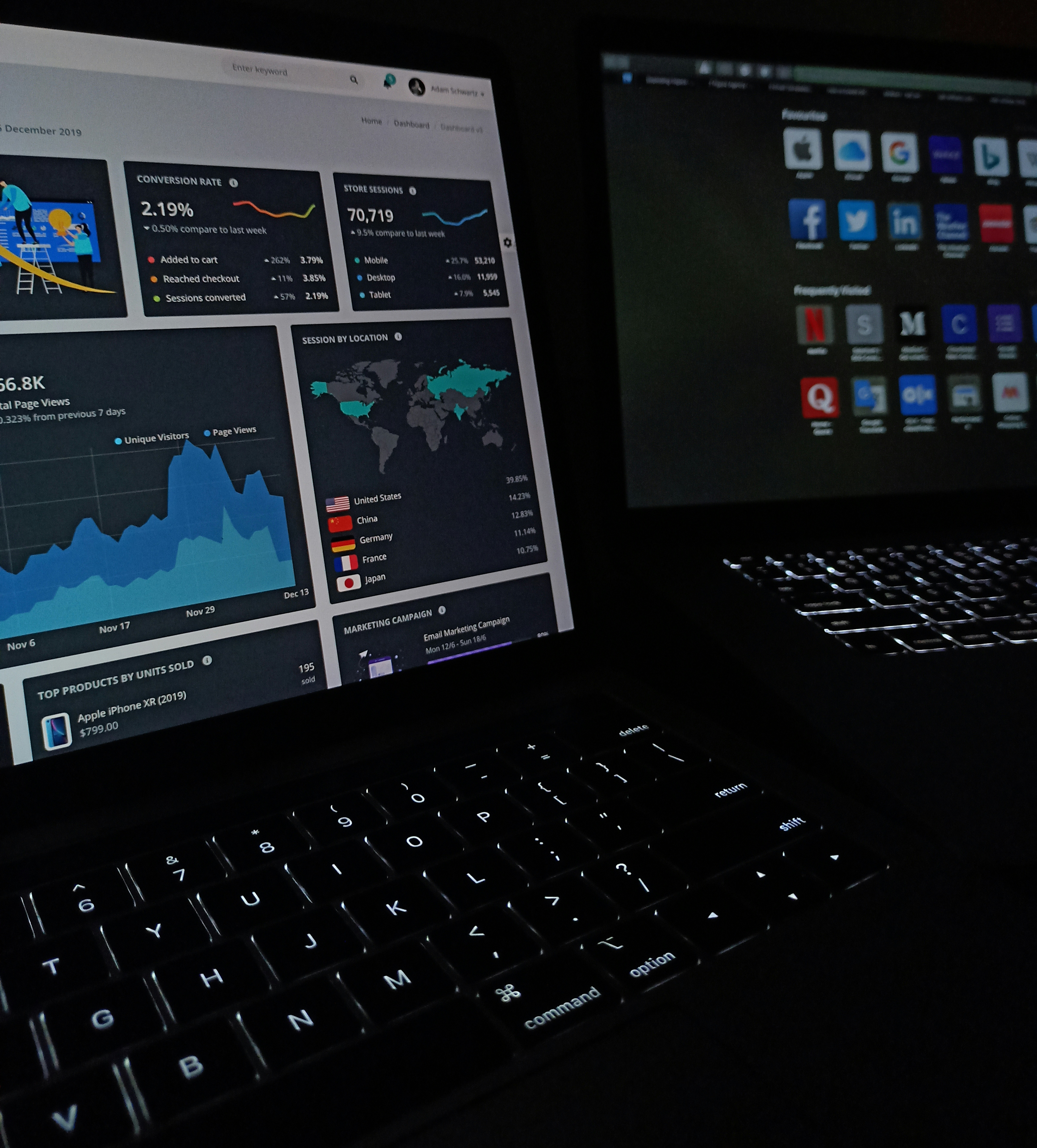
Looker Studio is a powerful data visualization tool designed to help organizations convert intricate datasets into meaningful insights. As businesses increasingly acknowledge the significance of data-driven decision-making, the demand for effective data visualization solutions has risen substantially. Looker Studio serves as a critical platform, enabling users to connect to various data sources, including external databases and even local databases, bridging the gap between raw data and actionable insights.
The importance of data visualization in modern analytics cannot be overstated. In a world inundated with information, visual representations of data not only enhance comprehension but also significantly expedite the decision-making process. By transforming complex data sets into intuitive dashboards and interactive reports, Looker Studio facilitates better communication of insights and trends among stakeholders. This capability is essential in a variety of industries, from finance and healthcare to marketing and e-commerce, where timely and informed decisions can create a competitive advantage.
Furthermore, Looker Studio allows users to customize their visualizations, ensuring that they can tailor the presentation of data to suit their specific needs. This customization is pivotal when businesses seek to identify patterns, track performance metrics, or gain foresight into future trends. With features that enable the integration of external and local databases seamlessly, users can expect a streamlined experience when connecting Looker Studio to local databases, effectively leveraging the vast amount of data at their disposal.
As organizations continue to navigate the complexities of big data, tools like Looker Studio play an indispensable role. By empowering users to create insightful dashboards that synthesize their local data efficiently, Looker Studio not only enhances understanding but also drives strategic decision-making in an increasingly data-centric world.
Understanding Local Databases
Local databases refer to database management systems that store data on a user’s device or on a local server, as opposed to being hosted in the cloud. These databases are characterized by their accessibility, where users can interact with the database directly without relying on internet connectivity. Local databases can offer distinct advantages, especially in terms of speed and control, which make them a popular choice for certain applications and environments.
Among the various types of local databases, MySQL, PostgreSQL, and SQLite are particularly noteworthy. MySQL is an open-source relational database management system that is widely used for storing and retrieving data for applications. It is known for its robustness and is frequently utilized in conjunction with web-based applications where data integrity is paramount. PostgreSQL, another popular choice, is renowned for its advanced features and compliance with SQL standards, making it an excellent option for complex queries and large-scale applications.
SQLite, on the other hand, is a lightweight database solution that offers simplicity and minimal setup overhead. It is often embedded within applications and works efficiently for smaller projects where a full-fledged database server might be overkill. Users tend to favor SQLite for mobile applications and small-to-midsize web projects due to its ease of use and low resource consumption.
Choosing a local database can prove advantageous in various scenarios. For instance, businesses that handle sensitive information might prefer local databases to maintain data confidentiality and comply with strict data protection regulations. Furthermore, developers may opt for local databases when they intend to work on projects that necessitate extensive testing before deployment, allowing for rapid iteration without concerns about external dependencies. In light of these features, understanding the nature and benefits of local databases lays the groundwork for effectively utilizing tools like Looker Studio to connect to local databases, enabling a more streamlined data analysis and visualization process.
Required Setup for Connecting Looker Studio to a Local Database
In order to successfully connect Looker Studio to a local database, several prerequisites must be met. These requirements will ensure a seamless integration, enabling users to leverage the powerful capabilities of Looker Studio in analyzing data stored locally. First and foremost, the appropriate software must be installed. This includes Looker Studio itself, as well as any necessary database management systems (DBMS) such as MySQL, PostgreSQL, or Microsoft SQL Server, depending on the local database being used.
Once the software is installed, the next crucial step involves driver installation. Looker Studio requires specific database drivers that facilitate communication between the application and the local database. For instance, JDBC (Java Database Connectivity) drivers are commonly used for Java-based applications like Looker. Users must ensure that they download the correct version of the driver to match both the database type and the version they are using to prevent compatibility issues.
Furthermore, network configurations play a pivotal role in allowing Looker Studio to connect to a local database. It is essential that the local database is set up to accept incoming connections, which may involve configuring the database’s firewall settings or modifying the database’s connection string. Users should also confirm that the correct host address and port numbers are being used in the connection settings within Looker Studio.
Despite these clear guidelines, users may encounter common challenges during the initial setup. For example, firewall settings might inadvertently block access, or incorrect database credentials could result in connection failures. Familiarizing oneself with these potential hurdles can significantly ease the troubleshooting process. By ensuring that the necessary software is in place, drivers are correctly installed, and network configurations are properly set, users can effectively establish a connection between Looker Studio and their local database.
Step-by-Step Guide to Establishing the Connection
Establishing a connection between Looker Studio and your local database is a crucial step for data analysis. Below, we will break down the process into clear steps, allowing for a straightforward setup.
First, open Looker Studio on your device. You will be greeted by the main interface, where you can begin the connection process. Navigate to the ‘Create’ section usually found in the top-right corner. From the drop-down menu, select ‘Data Source’. This action will facilitate the selection of your database type in the subsequent step.
Next, choose the appropriate connector for your local database, whether it be MySQL, PostgreSQL, or another supported type. Once selected, you will be prompted to configure the connection settings. Here, you’ll need to input the hostname, port number, database name, username, and password that corresponds to your local database. Ensure that the credentials are accurate to avoid connectivity issues.
After entering the required credentials, look for the option to enable the connection. In many cases, you may need to provide additional parameters, such as SSL settings, depending on your database’s security requirements. It is crucial to consult your database documentation if you encounter any uncertainty in this process.
With the credentials entered and configurations made, proceed to test the connection. There should be an option labeled ‘Test Connection’. Click on this to verify that Looker Studio can successfully connect to your local database. If the test is successful, you will be notified, allowing you to save the data source and proceed with your analysis.
Following these steps will enable a seamless connection between Looker Studio and your local database, thus enhancing your data visualization and reporting capabilities. Always remember to maintain security best practices while handling your database connections.
Common Issues and Troubleshooting Tips
When attempting to connect Looker Studio to a local database, users may encounter several common issues that could hinder their experience. Being aware of these challenges and their possible solutions can significantly alleviate frustration and improve performance.
One of the most prevalent problems is the occurrence of connection errors. These errors typically arise from incorrect configuration settings, such as an improper hostname, port number, or database credentials. It is crucial to double-check the database connection parameters to ensure they align with the local database settings. Additionally, network issues, such as firewall restrictions, can block the connection. Users should verify that necessary ports are open and that their network permits communications between Looker Studio and the local database.
Authentication failures may also pose challenges when connecting Looker Studio to a local database. Ensure that the credentials being used—username and password—are accurate and have the appropriate permissions for accessing the database. In some instances, user accounts may need to be configured specifically for use with Looker Studio, allowing for the necessary data access. Reviewing the local database documentation concerning user roles and authentication methods can provide further clarity.
Data retrieval issues represent another potential obstacle. Even if the connection is established successfully, users might find that data is not displayed as expected. This problem can stem from several factors, including improper data queries or insufficient data permissions. It is advisable to test queries directly on the local database to identify any inconsistencies. Furthermore, reviewing the Looker Studio documentation on how to properly structure queries can enhance data retrieval efforts.
By addressing these common issues with pragmatic solutions, users can enhance their experience and optimize their ability to connect Looker Studio to a local database effectively.
Data Visualization Best Practices in Looker Studio
Establishing a robust connection between Looker Studio and your local database is merely the first step in leveraging data visualization tools to their full potential. Once this connection is established, it is crucial to adhere to data visualization best practices that can significantly enhance the clarity and user experience of your dashboards. Effective design principles play a pivotal role in achieving a well-organized and easily interpretable presentation of data.
One key principle is to prioritize simplicity and clarity in visual design. Avoid cluttering the dashboard with excessive information; instead, focus on presenting only the most relevant data points. This will help users quickly grasp the essential insights without being overwhelmed by unnecessary details. A minimalist approach allows for a cleaner interface, thereby making the data easier to understand. Additionally, utilizing ample white space can create a more comfortable viewing experience.
Choosing the right charts is another critical aspect of effective data visualization in Looker Studio. Different types of data require different visualization techniques. For instance, time series data is best displayed using line charts, while categorical data can be represented through bar charts or pie charts. It is essential to select visualizations that align with the type of data being presented, as this increases the likelihood that users will interpret the information accurately.
Furthermore, enhancing user experience goes beyond mere aesthetics. Interactivity is a powerful feature of Looker Studio that allows users to engage with the data dynamically. Incorporating interactive filters, tooltips, and drill-down capabilities enables users to access deeper insights tailored to their specific needs. This not only enhances the understanding of the data but also encourages active participation.
In conclusion, ensuring that your Looker Studio dashboard is intuitively designed, charted correctly, and interactive fosters an environment where users can derive meaningful insights from their local database effectively. By implementing these best practices, you can maximize the impact of your data visualizations.
Case Studies: Successful Implementations
Many organizations have successfully connected Looker Studio to local databases, yielding significant insights that enhance their data utilization. One notable case involves a mid-sized retail company that faced challenges in data retrieval from various operational databases. The initial step was identifying the right local database that could efficiently store transactional data. After thorough research, the organization opted for PostgreSQL due to its robustness and compatibility with Looker Studio.
The first challenge was ensuring seamless data integration. The organization faced issues with data quality and formatting inconsistencies. To overcome these hurdles, the data team conducted a series of data cleansing processes, ensuring uniformity before establishing the connection to Looker Studio. By leveraging Looker Studio’s features, they transformed operational data into actionable insights. This transformation streamlined report generation and led to improved decision-making practices across departments.
Another compelling example is a financial services firm that needed to connect Looker Studio to a SQL Server database containing sensitive customer information. Ensuring data security was of utmost importance. The organization implemented stringent access controls and used encrypted connections to safeguard data. By utilizing Looker Studio’s capabilities to visualize complex financial analytics, the firm was able to effectively monitor performance metrics. They gained valuable insights that contributed to enhanced client engagement strategies and personalized service offerings.
These case studies illustrate not only the technical challenges organizations face when connecting Looker Studio to their local databases but also the innovative solutions they adopted. Ultimately, the successful implementations resulted in better data coherence, improved reporting capabilities, and enhanced business intelligence. These real-life applications underscore the importance of a strategic approach in fostering data-driven cultures within organizations.
FAQs About Looker Studio and Local Databases
As businesses increasingly recognize the power of data-driven decision-making, the use of Looker Studio to connect to local databases becomes more prevalent. However, potential users often have varied questions regarding the integration process, licensing, scalability, limitations, and data security. Addressing these frequently asked questions can provide clarity and facilitate smoother implementation.
One of the primary concerns relates to licensing. Looker Studio operates on a subscription-based model, which entails specific licensing agreements. Organizations utilizing Looker should ensure they comply with licensing terms, especially when connecting to a local database. Exploring all available packages can help in selecting the most appropriate plan that meets both functional needs and budgetary constraints.
Scalability is another common consideration. Looker Studio is designed to handle large datasets efficiently, making it suitable for businesses of different sizes. When connecting to a local database, it is essential to assess the performance capabilities of your infrastructure. Should your data requirements grow, you may need to upgrade your database or review your server capacities to maintain optimal performance.
While integrating Looker Studio with a local database offers substantial advantages, limitations exist. Users might encounter challenges related to data refresh rates and query performance, which could affect real-time analytics. It is advisable to consult the documentation available through Looker to understand these limitations fully and plan accordingly.
Furthermore, ensuring data security is paramount when connecting Looker Studio to local databases. Implementing robust security protocols, including access controls, encryption, and regular audits, can help protect sensitive information. Being proactive about data security helps mitigate risks associated with data breaches and integrity issues.
Through a comprehensive understanding of these questions, users can better navigate the process of connecting Looker Studio to local databases and maximize its benefits.
Conclusion and Further Resources
In this comprehensive guide, we have explored the essential steps to successfully connect Looker Studio to your local database. Understanding the process of integrating your local data with Looker Studio can vastly enhance your data analysis capabilities, allowing for more informed decision-making and a deeper insight into your business operations. By leveraging Looker Studio’s powerful features, you can create meaningful visualizations and derive actionable insights from your data.
Throughout this guide, we highlighted the importance of prerequisites such as ensuring your local database is properly configured and accessible. We discussed the significance of connection parameters and authentication methods, which are critical for establishing a seamless link between Looker Studio and your local data. We also briefly covered troubleshooting tips, offering guidance on common scenarios you might encounter during the connection process.
To delve deeper into the specifics of Looker Studio and its connection to local databases, we encourage you to explore the additional resources that we have provided. These resources include links to our contact page should you have any questions or require professional assistance, our service page for further offerings, and our blog link for more insightful articles on related topics. Accessibility to accurate data is a vital component of modern business strategies, and utilizing Looker Studio effectively can give you a competitive edge.
We hope this guide has equipped you with the knowledge to confidently connect Looker Studio to your local database. Armed with these insights, you can start tapping into the full potential of your data. Be sure to take action and begin your journey toward more efficient data analysis today.

