Introduction to Looker Studio and Search Console
Looker Studio and Google Search Console are essential tools in the arsenal of digital marketers and SEO professionals. Looker Studio, previously known as Google Data Studio, is a powerful business intelligence platform that allows users to visualize and analyze data in a user-friendly manner. It facilitates the creation of interactive reports and dashboards that can be customized to meet specific analytics needs. Its seamless integration with various data sources enables users to present insights in a visually appealing format, enhancing overall data comprehension.
On the other hand, Google Search Console is a vital service provided by Google that helps website owners monitor and maintain their site’s presence in Google Search results. It offers a wealth of information regarding how a website performs in search rankings, identifies potential issues that may affect visibility, and provides insights into user interactions with the website. This tool is indispensable for identifying keywords that drive traffic, monitoring site health, and improving overall search engine optimization strategies.
When Looker Studio is combined with Google Search Console, the result is an enhanced reporting capability that significantly improves the analysis of website performance and user engagement. The integration allows marketers to pull data directly from Search Console into Looker Studio, enabling them to create comprehensive dashboards that visualize important metrics such as clicks, impressions, and average positions. This synergy enhances the ability to derive insights quickly, ultimately driving data-informed decision-making. By harnessing the strengths of both tools, businesses can optimize their digital marketing strategies and effectively respond to the ever-changing landscape of online user behavior.
Setting Up Looker Studio for Search Console Data
To effectively leverage Looker Studio for reporting Google Search Console data, the initial setup involves several essential steps that facilitate data integration and configuration. The first step is to access Looker Studio, which can be done through your web browser by navigating to the official Looker Studio site and signing in with your Google account.
Once signed in, you will need to create a new report. Here, look for the option to add a data source. This action is pivotal as it establishes the link between Looker Studio and your Google Search Console account. To proceed, select “Add Data” and then choose “Google Search Console” from the list of available connectors. You may be prompted to authorize Looker Studio to access your Google Search Console data, so be prepared to grant the necessary permissions.
After successfully connecting Looker Studio to Google Search Console, the next step is to choose the appropriate data sources. Google Search Console offers various metrics and dimensions; therefore, it is crucial to carefully select the data most relevant to your reporting needs. Common selections include impressions, clicks, average position, and queries. Customize your data selection to align with your analysis goals, ensuring your reporting is both comprehensive and concise.
Following the selection of data sources, you should configure data settings. This configuration allows you to fine-tune the metrics displayed in your reports. To achieve accurate reporting, adjust parameters such as date ranges, filters, and view settings. Establishing these details helps in creating a tailored visualization of your Search Console data.
By following these steps, you will be well-equipped to utilize Looker Studio effectively for insightful reporting of Google Search Console data, paving the way for informed decision-making based on robust analytics.
Creating Your First Search Console Report
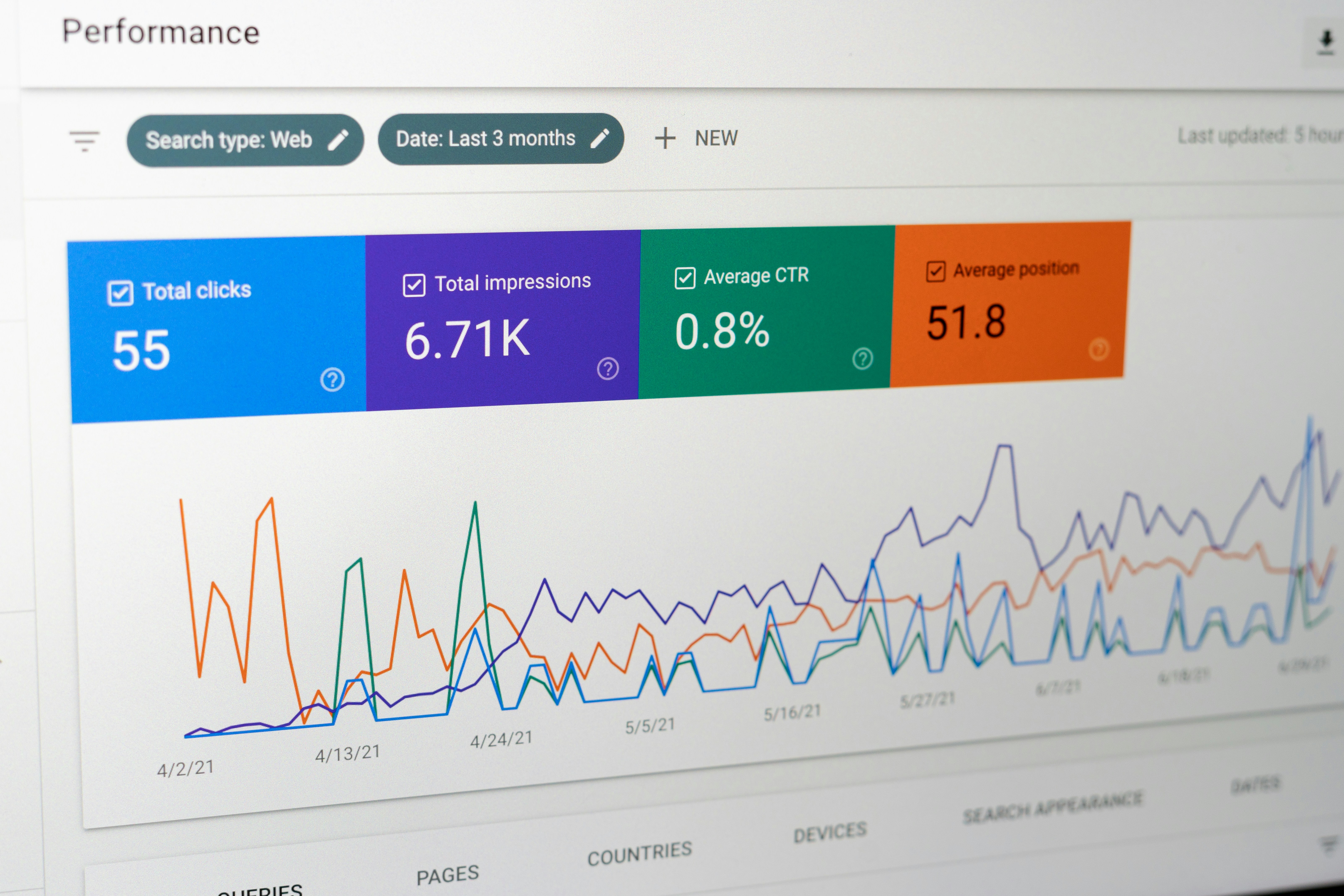
Creating a report in Looker Studio using data from Google Search Console can provide valuable insights into website performance and search metrics. To start, it is essential to choose the right metrics that align with your reporting objectives. Commonly utilized metrics include Total Clicks, Total Impressions, Average Click-Through Rate (CTR), and Average Position. These metrics will help achieve a comprehensive understanding of your website’s visibility in search results.
Once the appropriate metrics have been selected, the next step is to visualize the data effectively. Looker Studio offers various visualization options such as line graphs, bar charts, and tables, which can be utilized to present your Search Console data clearly. For instance, a line graph could effectively illustrate trends in clicks over time, while a bar chart could compare average positions for different pages. It’s crucial to select visualization types that best represent the data and facilitate quick understanding for stakeholders.
Furthermore, arranging your report layout with clarity and accessibility in mind is paramount. A clean layout aids users in interpreting the data. Begin by establishing a logical flow, such as introducing key metrics at the top of the report, followed by graphical representations of those metrics. Ensure that headings and subheadings are clearly defined for easier navigation through the report. Additionally, consider implementing filters that allow users to view specific date ranges or segments of data, enhancing interactivity and user experience.
By following these steps—selecting appropriate metrics, building effective visualizations, and arranging your layout thoughtfully—creating your first Search Console report in Looker Studio will be a streamlined process. This not only enhances clarity but also fosters better communication of insights derived from your website’s search performance.
Understanding Key Metrics from Search Console
Google Search Console is a powerful tool that offers valuable insights into a website’s performance in organic search results. By leveraging the data provided by this tool, users can better understand various key metrics that inform their digital strategies. Integrating these metrics into Looker Studio can streamline reporting processes, enabling data-driven decision-making.
One of the primary metrics is impressions, which represents the number of times a website appears in search results. High impressions are a positive indication of visibility but do not necessarily correlate with traffic. Users should analyze impressions alongside other metrics to gain a fuller picture of their performance. The next crucial metric is clicks, which signifies the actual number of times users clicked on a website link from search results. This metric directly impacts website traffic and can guide optimization efforts.
The click-through rate (CTR) is another critical measurement, calculated as the ratio of clicks to impressions. A high CTR suggests that the website’s meta titles and descriptions are compelling and relevant, increasing the likelihood of users clicking through. Conversely, a low CTR may indicate the need for modifications to improve engagement. Additionally, the average position metric reveals a website’s ranking in search results for targeted queries. This position can fluctuate based on various factors such as algorithm updates or competitive content.
By effectively analyzing these metrics—impressions, clicks, CTR, and average position—website owners can gather essential insights into user behavior and overall site performance. This understanding enables continuous optimization, adjusting strategies for enhanced organic reach and engagement. Integrating these vital metrics into Looker Studio adds a layer of depth to reporting, facilitating a comprehensive view of search performance.
Visualizing Data Effectively
Effective data visualization is crucial for extracting actionable insights from the myriad of data available in Looker Studio, particularly when reporting on Search Console metrics. The selection of the right types of charts and graphs is foundational to creating visual representations that convey the intended message clearly. For instance, line charts are ideal for illustrating trends over time, while bar charts work well for comparing discrete categories, such as the performance of different keywords. When dealing with proportions or percentages, pie charts can be useful, although they should be employed judiciously to prevent oversimplification of complex data.
Color selection and usage also play a critical role in data visualization. A well-curated color palette aids in enhancing user comprehension and retention. It is advisable to use contrasting colors for different datasets to ensure clarity and avoid confusion. Consistency is also key; applying the same color to identical data types throughout the dashboard allows users to navigate the visual information more intuitively. Additionally, incorporating gradients can be effective for depicting ranges or changes, particularly in heat maps.
Beyond choosing the right visual elements, designing interactive dashboards enhances the user experience significantly. Looker Studio permits the integration of filters and data manipulators, allowing users to drill down into specific demographics or periods for a more nuanced analysis. By empowering users to tailor the data views to their needs, organizations can facilitate better decision-making. Consider employing dropdown menus for selecting key metrics or date ranges, and implement sliders for variable adjustments. Such interactive features transform static reports into dynamic, engaging tools that enrich data exploration and foster deeper understanding of Search Console insights.
Sharing and Collaboration Features
Looker Studio offers a robust set of sharing and collaboration features that streamline teamwork and improve reporting outcomes. To initiate the sharing process, users can easily send out reports to stakeholders by utilizing the “Share” button within the interface. This functionality allows for both individual and group sharing, enabling teams to communicate insights effectively. Stakeholders can gain immediate access to the data, fostering a transparent environment for decision-making.
One of the most advantageous features of Looker Studio is the ability to set permission levels for each user. This ensures that sensitive information is protected while still allowing relevant parties to access the reports they need. Users can assign various permissions, such as Viewer, Editor, or Commenter, depending on the required level of access. This granularity in permission settings helps to maintain data integrity and allows teams to control who can edit and contribute to reports.
In addition to sharing and permission settings, Looker Studio enhances collaborative efforts through its real-time editing capabilities. Multiple users can work on a report simultaneously, making updates, comments, and suggestions as needed. This real-time collaboration feature significantly improves the efficiency of the workflow, as team members can promptly address questions or concerns arising during discussions. As a result, feedback is integrated directly into the report, ensuring all team members remain aligned throughout the decision-making process.
Furthermore, the commentary functionality allows users to leave notes and insights directly within the report. This feature not only promotes ongoing dialogue among team members but also provides a historical record of discussions and decisions made during the report creation process. In combination, these features of Looker Studio empower teams to share information effectively and collaborate in a meaningful way, ultimately leading to better-informed decisions based on comprehensive data analysis.
Common Challenges and Solutions
Reporting with Looker Studio in conjunction with Google Search Console can present several challenges for users. One common issue is data discrepancies between the two platforms. This can occur due to differences in the way data is aggregated or reported. For instance, Search Console may display data for a specified date range, while Looker Studio may pull from a broader range or experience delays in data updates. To mitigate these discrepancies, it is essential to ensure that the same date range has been set in both platforms and to regularly clear the cache in Looker Studio to ensure the most accurate data is being referenced.
Another challenge involves report performance. As users integrate expansive datasets and complex queries into Looker Studio, performance can markedly degrade, leading to slow loading times or even errors. To resolve this issue, users should optimize their queries by reducing the amount of data processed. This can be achieved by filtering unnecessary fields, aggregating data where applicable, or using calculated fields that optimize operations instead of conducting them within the reporting interface. Additionally, leveraging custom metrics from Google Search Console can help streamline data and enhance overall report performance.
Users might also encounter difficulties in visualizing data effectively. The multitude of options available in Looker Studio can become overwhelming, impeding the creation of clear and insightful reports. To navigate this complexity, it is advisable to keep the audience in mind and focus on the core metrics that truly matter. Employing simple, informative visualizations such as bar charts or line graphs can often communicate data more effectively than overly intricate representations. Regularly soliciting feedback from stakeholders regarding report design and information clarity can assist in honing the reporting process further.
Case Studies: Success Stories Using Looker Studio Reports
Many businesses have increasingly turned to Looker Studio for effective reporting on their Search Console data, yielding insightful results that drive strategic decisions. One notable case study involves a mid-sized e-commerce company that aimed to optimize its online presence. Initially, the organization struggled with low organic traffic and unclear visibility into its keyword performance. By employing Looker Studio, they created customized dashboards that aggregated Search Console metrics and provided visual representations of their data. This facilitated better tracking of their target keywords and organic search performance over time. As a result, the business achieved a 35% increase in organic traffic within six months, attributing this growth to informed decision-making driven by Looker Studio insights.
Another compelling case study features a digital marketing agency that sought to enhance its reporting services for clients. The agency utilized Looker Studio to automate the extraction and visualization of Search Console data, enabling quicker report generation. By integrating various data sources, such as Google Analytics and Ads data, the agency was able to provide comprehensive performance reports to clients. The streamlined process not only reduced manual labor but also improved client satisfaction, leading to a 20% increase in client retention. This success underscores the potential of Looker Studio as a tool for data analysis and presentation in the competitive digital marketing landscape.
Lastly, a local news organization implemented Looker Studio to gain insights into keyword trends and reader engagement. By analyzing Search Console reports through their visual dashboards, they identified which topics resonated most with their audience. This strategic awareness led to a content overhaul focused on high-performing topics, resulting in a 50% increase in website traffic and enhanced reader engagement. This case exemplifies the transformative capability of Looker Studio in making data-driven decisions that foster growth and engagement.
Conclusion and Next Steps
To effectively summarize the insights discussed, Looker Studio emerges as a powerful tool that streamlines the process of reporting from Google Search Console, facilitating enhanced data visualization and interpretation. By integrating these two platforms, users can create customized dashboards that illuminate web performance metrics, ultimately enabling more informed decision-making. The capability to aggregate data from multiple sources and transform it into visually appealing reports enhances accessibility and understanding, making it easier for stakeholders to grasp key performance indicators.
As we have seen, utilizing Looker Studio allows users to monitor essential metrics such as organic traffic, click-through rates, and keyword rankings in a comprehensive manner. This strategic approach not only aids in identifying trends but also pinpoints areas for improvement, leading to optimized SEO strategies. By harnessing the full potential of Looker Studio and Google Search Console, organizations can enhance their digital presence, attract more visitors, and ultimately contribute to greater revenue generation.
For readers looking to delve deeper into this subject, there are numerous resources available that can support the ongoing journey of leveraging data for enhanced decision-making. Online courses, webinars, and community forums can offer valuable insights and keep one updated on best practices. Furthermore, experimenting with various visualizations and reports in Looker Studio can foster a better understanding of how to present data effectively. By committing to continual learning and adaptation, organizations can stay ahead in the ever-evolving digital landscape.
In conclusion, the synergy between Looker Studio and Google Search Console provides a robust framework for reporting and analysis. As you embark on or enhance your data-driven journey, consider utilizing the insights shared in this article to maximize your reporting capabilities. Taking these next steps will not only empower your decision-making process but also cultivate a culture keen on leveraging data for sustainable growth.