Introduction to Facebook Insights and Looker Studio
In the digital age, businesses and marketers must leverage data to stay competitive. Facebook Insights is a powerful analytics tool provided by Facebook that allows users to monitor audience engagement and assess the performance of their content. By utilizing Facebook Insights, businesses can obtain valuable data regarding user interactions, reach, impressions, and other important metrics that inform strategic decisions. This comprehensive understanding of Facebook data ultimately drives better marketing strategies, enhances audience targeting, and improves overall performance on social media.
Looker Studio, formerly known as Google Data Studio, serves as a crucial companion to Facebook Insights by simplifying the process of data visualization and reporting. By integrating Facebook data with Looker Studio, businesses can create visually appealing and easy-to-interpret dashboards. These dashboards facilitate a deeper understanding of engagement metrics and trends, enabling marketers to extract meaningful insights swiftly. Furthermore, Looker Studio offers an array of options for customizing reports, making it easier for stakeholders to engage with the data being presented.
The implementation of templates within Looker Studio is particularly beneficial for efficient data analysis. A Facebook Insights Looker Studio template allows users to bypass the often tedious process of establishing reports from scratch. Instead, marketers can focus on interpreting the data and making informed decisions. These templates are designed to showcase essential metrics at a glance, allowing for quick assessments and strategic adjustments. By utilizing a Facebook Insights Looker Studio template, businesses can enhance their reporting capabilities while maximizing their return on time invested in data analysis. Overall, the synergy between Facebook Insights and Looker Studio represents a significant advantage for marketers aiming to optimize their social media strategies.
Benefits of Using Looker Studio for Facebook Insights
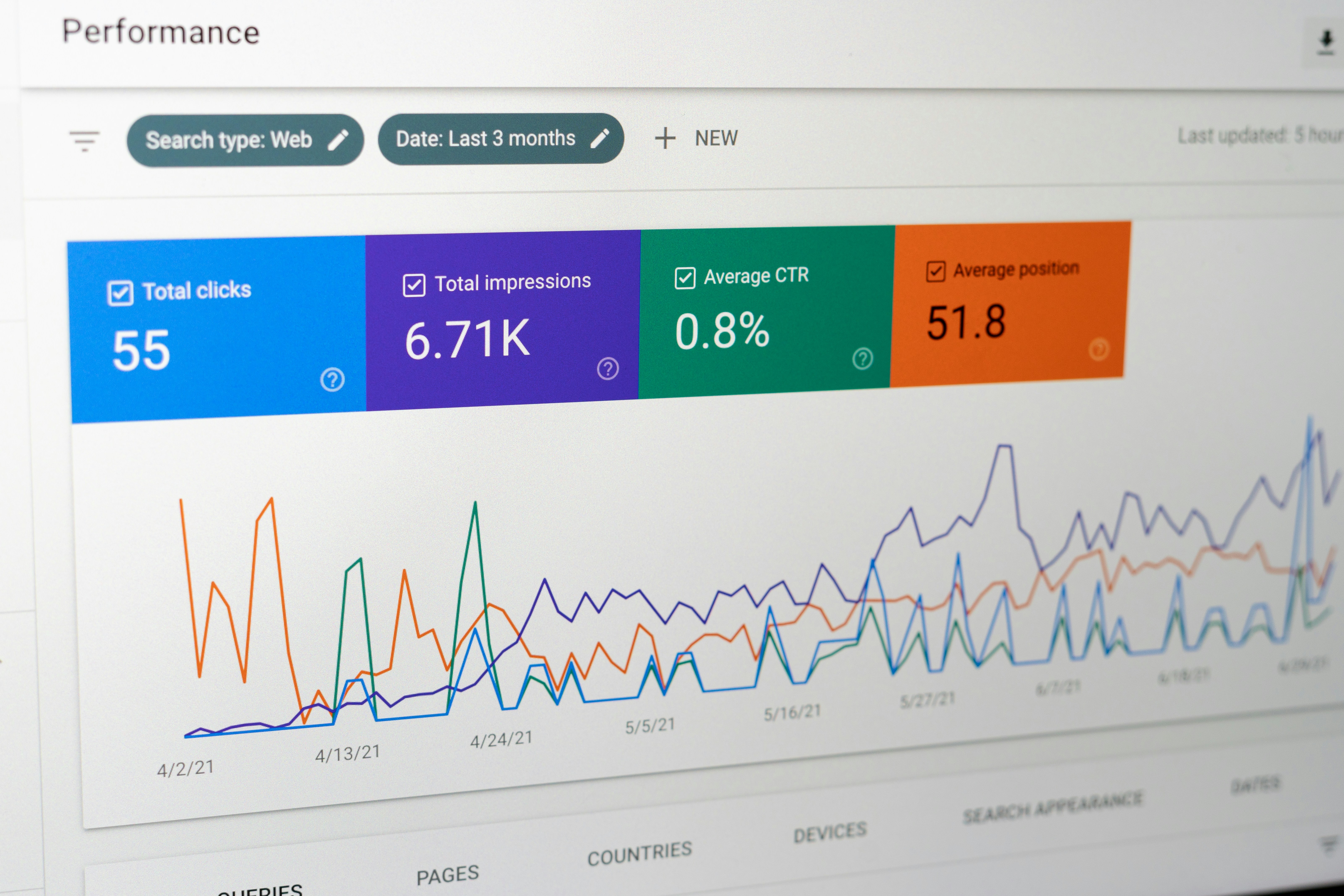
Employing Looker Studio to analyze Facebook Insights presents numerous advantages that significantly enhance the efficacy of data interpretation and reporting. One of the primary benefits is the superior data visualization capabilities that Looker Studio provides. By utilizing an array of interactive charts, graphs, and dashboards, users can transform complex Facebook data into comprehensible visuals. This streamlined presentation enables stakeholders to quickly grasp key metrics such as engagement rates, reach, and audience demographics, facilitating immediate understanding and actionable insights.
Furthermore, Looker Studio improves reporting accuracy by consolidating data from various sources. This cloud-based solution integrates seamlessly with Facebook, offering real-time updates and eliminating discrepancies that often arise from manual reporting processes. As a result, organizations can rely on precise data that reflects their social media performance without the common pitfalls associated with traditional reporting methods.
In addition to enhanced visualization and improved accuracy, Looker Studio fosters better decision-making through comprehensive data analysis. The tool’s advanced analytical capabilities allow users to explore various dimensions of Facebook data, identifying trends and patterns that might otherwise go unnoticed. For example, marketers can understand which posts generate the most engagement, thus informing future content strategies and optimizing resource allocation.
Moreover, Looker Studio encourages collaborative analysis. By allowing team members to access shared dashboards and reports, it ensures that everyone involved in the decision-making process has access to the same insights. This fosters a data-driven culture, empowering teams to explore deeper correlations between marketing campaigns and audience behavior on Facebook.
Ultimately, the combination of data visualization, accuracy, and enhanced analytical capabilities makes the Looker Studio template an invaluable tool for effectively leveraging Facebook Insights to achieve organizational goals.
Setting Up Your Looker Studio Environment
To begin harnessing the power of Facebook Insights through the Looker Studio, it’s essential to set up your environment correctly. This initial configuration will enable a seamless flow of data and facilitate the creation of insightful reports. Start by accessing Looker Studio, which can be found at the Google Data Studio website. Once you are on the homepage, log in using your Google account credentials; this action will grant you access to the various tools available for data visualization and reporting.
After logging in, you will need to connect your data sources. For Facebook Insights, you may need to use a third-party connector if a direct integration is not available. To do this, navigate to the “Create” button and select “Data Source.” From here, you can search for the Facebook connector or any alternative that serves your need. Follow the on-screen prompts to authenticate your Facebook account and grant the necessary permissions to access the required data.
Once your data source is connected, you can begin creating your new report. Click on the “Create” button again, this time selecting “Report.” When prompted, choose your previously connected Facebook Insights data source. This selection will allow you to pull relevant data into your report. Upon entering the report editor, you will find a user-friendly interface where you can start arranging charts, tables, and other visual elements that best represent your Facebook data.
As you familiarize yourself with the Looker Studio options, consider customizing your report’s layout and theme to enhance visual clarity. You can drag and drop elements, adjust size, and configure settings for each visualization component. This fundamental setup will pave the way for creating robust reports that leverage the insights gleaned from your Facebook data and optimize your overall analysis. In conclusion, following these initial steps will equip you with the necessary framework to fully leverage the capabilities of the Facebook Insights Looker Studio template.
Creating a Facebook Insights Looker Studio Template
Developing a Facebook Insights Looker Studio template involves several critical steps to ensure that you can analyze and visualize your social media performance effectively. First, begin by identifying the key metrics that are paramount to your analysis. These may include engagement rates, reach, impressions, and audience demographics. Understanding which metrics reflect your Facebook page’s performance will help tailor your template to meet specific analytical needs.
Once you’ve selected the relevant metrics, the next step is to design the layout of your Looker Studio template. A well-organized layout is crucial for a clear presentation of data. Start with a header that displays the title of the report prominently, followed by sections dedicated to each selected metric. Utilize charts and graphs to visualize trends and comparisons, as this aids in immediate comprehension. For instance, line graphs can illustrate changes in engagement over time, while bar charts can compare audience reach across various campaigns.
Configuring filters and date ranges is another vital component of creating your Facebook Insights Looker Studio template. Filters enable you to segment the data by various dimensions, such as location, age group, or campaign. This segmentation is key to deriving actionable insights tailored to specific audience segments. Additionally, setting appropriate date ranges allows for a focused analysis on particular timeframes, facilitating comparisons of performance over different periods. This combination of metrics, layout, and configurability ensures your template is not only customized but also functional, providing a comprehensive view of your Facebook insights.
By following these guidelines, users can create an effective Facebook Insights Looker Studio template that promotes better data interpretation and informs strategic decision-making regarding their social media efforts.
Understanding Key Metrics in Facebook Insights
Facebook Insights provides users with a wealth of data, making it essential for marketers to track various key metrics to optimize their social media strategy. One of the primary metrics is engagement rate, which measures how users interact with your content through likes, shares, comments, and other actions. A high engagement rate indicates that your audience finds your content relevant and appealing, thus enhancing your overall brand presence.
Reach is another crucial metric that indicates the number of unique users who have seen your post. Understanding reach helps marketers assess the effectiveness of their content distribution. A higher reach suggests that your posts are being viewed by a broader audience, which can be instrumental in growing your brand awareness. On the other hand, impressions count how many times your content has been displayed, regardless of whether it was clicked or not. While high impressions are beneficial, they must be paired with engaged users to ensure that the posts are not only seen but also interactively consumed.
Clicks measure the number of times users click on your content, such as links or call-to-action buttons. This metric is vital as it directly correlates with user interest and can lead to website traffic or conversions. Closely related, conversions refer to a completed desired action, such as form submissions or purchases. Monitoring conversions allows businesses to evaluate the effectiveness of their marketing strategies and make necessary adjustments.
When utilizing a Facebook Insights Looker Studio template, these metrics come together to provide a comprehensive overview of your social media performance. Regularly analyzing these key measurements enables users to refine their approaches, thus enhancing their marketing campaigns effectively.
Customizing Your Looker Studio Template for Specific Needs
Customizing your Facebook Insights Looker Studio template allows you to better align the data visualizations with your specific business goals and priorities. The first step in this process involves adding personalization features that resonate with your unique requirements. You can achieve this by modifying the existing dashboard layout to include key performance indicators (KPIs) that reflect your strategic objectives. Each business has different metrics that matter; therefore, it is crucial to select metrics that provide valuable insights into your performance on Facebook.
Another pivotal customization aspect is setting alerts for key metrics within your template. Utilizing Looker Studio’s alert feature empowers users to receive notifications whenever specified metrics exceed or fall below anticipated thresholds. This is especially beneficial for businesses looking to react promptly to changes in engagement, reach, or conversion rates. By establishing these alerts, you can ensure that essential metrics are continually monitored, allowing for immediate action when required, which ultimately enhances your overall Facebook strategy.
Additionally, delving into the advanced functions available in the Facebook Insights Looker Studio template can yield deeper insights. You can utilize calculated fields to derive new metrics that may not be directly available, such as engagement rates or return on ad spend. Customizing visualizations like charts and graphs through features such as filters and segments can help in isolating particular audience demographics or time periods, enhancing your understanding of how different factors influence your Facebook performance.
In conclusion, tailoring your Looker Studio template for Facebook Insights not only improves data relevance but also helps in achieving more informed decision-making aligned with your business goals.
Tips for Analyzing Data Effectively
Analyzing data effectively is crucial for leveraging the Facebook Insights Looker Studio template to its full potential. By implementing specific strategies, users can derive meaningful insights from the data available. One of the foremost strategies involves identifying trends within the dataset. By closely examining metrics over a defined period, users can pinpoint patterns that may indicate shifts in audience engagement or content performance. Utilize visual tools available in Looker Studio, such as line graphs and bar charts, to depict these trends effectively.
Another important aspect of data analysis is comparing performance across different time frames. This can be accomplished by selecting relevant metrics, such as reach and engagement rates, and comparing these figures week-on-week, month-on-month, or even year-on-year. By utilizing the features within the Facebook Insights Looker Studio template, users can present this data visually, allowing for quick and easy comparisons. This will not only highlight successful strategies but also reveal areas in need of improvement.
Making actionable recommendations based on the analyzed data is a critical step in the data analysis process. After identifying trends and comparing performance, consider what changes could enhance results. For instance, if certain types of content consistently outperform others, one recommendation could be to increase the frequency of that particular content type. Additionally, it is important to document findings and proposed actions systematically, enabling stakeholders to understand the rationale behind each recommendation clearly.
By following these tips, users can maximize their ability to analyze Facebook data using the Looker Studio template effectively, ultimately driving better results for their social media strategy. Understanding the nuances behind the data and making informed decisions will facilitate a more robust digital marketing approach.
Sharing and Collaborating on Reports
Effective communication of insights gathered from Facebook data is essential for decision-making processes within any organization. Sharing and collaborating on reports generated through the Facebook Insights Looker Studio template can significantly enhance teamwork and stakeholder engagement. Looker Studio provides a range of sharing settings and collaboration features that facilitate the dissemination of information while maintaining data security.
When preparing to share your reports, it is important to adjust the sharing settings based on the audience. Looker Studio allows users to share reports via email or by creating a shareable link. Permissions can be customized to control who can view or edit the report. For stakeholders who require access to the insights without making modifications, selecting “view-only” access is recommended. Conversely, for team members who need to make collaborative edits or comments, granting “editor” access will enable them to contribute effectively.
Additionally, utilizing the collaboration features within Looker Studio can streamline the team’s work process. Users can add comments directly within the report, ensuring that discussions remain contextual and easily referenced. This can be particularly useful during team meetings or strategy sessions where feedback needs to be documented and addressed. Make sure to highlight key findings from the Facebook Insights Looker Studio template during presentations, utilizing visual elements such as charts and graphs to enhance understanding and engagement.
Best practices for presenting insights involve tailoring your approach to suit various audiences. When dealing with technical teams, focus on metrics and data analysis. In contrast, presenting to a non-technical audience may require more emphasis on tangible business implications and strategic recommendations based on the insights derived from the Facebook data. Overall, by leveraging Looker Studio’s features and following effective sharing strategies, organizations can foster an environment of collaboration that drives insightful data-driven decisions.
Conclusion and Next Steps
Throughout this comprehensive guide on mastering Facebook Insights, we have explored the functionality and utility of the Facebook Insights Looker Studio template. The insights extracted from this template allow users to analyze data effectively, enabling informed decision-making that can enhance marketing strategies and overall engagement on Facebook. We have emphasized how this template serves as a powerful tool for visualizing performance metrics and tracking audience behaviors, which are crucial for optimizing social media campaigns.
As you embark on your journey of utilizing the Facebook Insights Looker Studio template, there are several key takeaways to consider. First, understanding the various metrics available within the template is vital. Knowing which metrics to focus on can significantly elevate your analysis quality and help you pinpoint areas for improvement. Secondly, effective data visualization can aid in communicating results to stakeholders, making it necessary to leverage the template’s capabilities fully. Lastly, maintaining a regular review process ensures that your insights are current and relevant to the evolving landscape of social media.
For readers looking to deepen their knowledge and skills, we recommend several next steps. First, explore additional resources available on RGGupta’s website, where you can find tutorials, case studies, and downloadable templates designed specifically for enhancing your use of Facebook Insights. Additionally, consider engaging with online courses or webinars that focus on data analysis and social media metrics to further consolidate your understanding. Should you have any questions or require assistance, RGGupta’s support page offers various options for contact, ensuring you receive the help you need.
By taking these steps, you will not only master the Facebook Insights Looker Studio template but also enhance your ability to make data-driven decisions in your marketing efforts.