
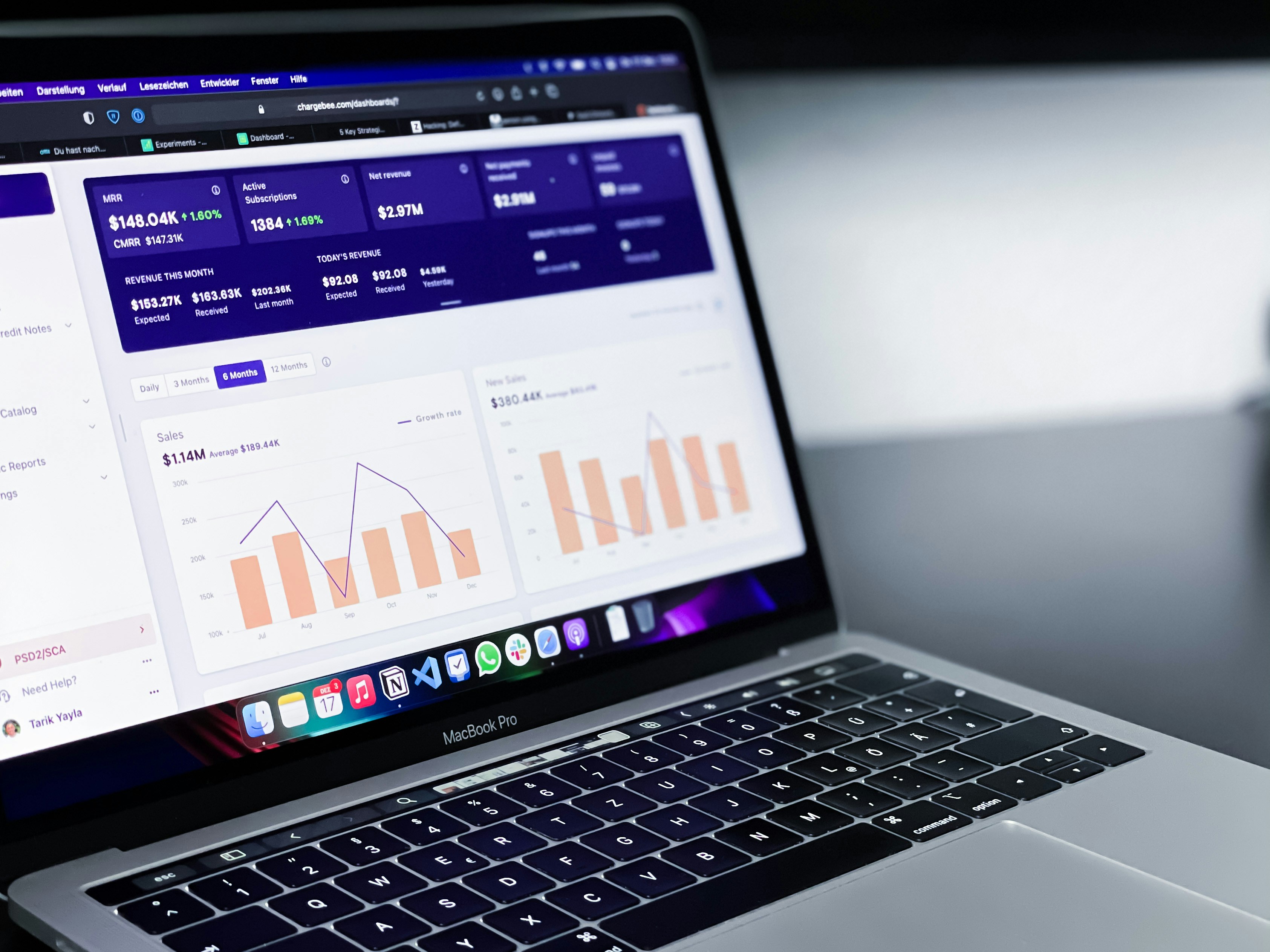
Introduction to Looker Studio
Looker Studio is a powerful data analysis and reporting tool that enables users to convert complex datasets into comprehensible visualizations. Designed to facilitate strategic decision-making, Looker Studio optimizes the process of data exploration and interpretation. By offering a user-friendly interface and robust functionalities, it allows organizations to derive meaningful insights from their data efficiently.
The significance of Looker Studio lies in its ability to integrate seamlessly with various data sources and databases, supporting a wide range of visualization options. This flexibility allows users to tailor their reports to meet specific business needs, ensuring that relevant information is readily accessible. Furthermore, the platform’s compatibility with multiple browsers, particularly Google Chrome, enhances its appeal. Chrome users benefit from improved performance, speed, and stability when accessing Looker Studio, enabling a smoother experience while navigating data reports.
Looker Studio is particularly beneficial for organizations focused on improving reporting efficiency. Its advanced features like custom dashboards and data collaboration tools empower teams to work together effectively, facilitating collective decision-making. Analysts can create interactive reports that not only provide historical context but also predict future trends, driving data-informed strategies within the organization.
In the context of Chrome device usage, Looker Studio becomes an invaluable asset. As more organizations transition to cloud-based tools and remote work environments, understanding how to maximize the reporting capabilities of Looker Studio across different devices, particularly those powered by Chrome, is crucial. This guide will delve deeper into the methodologies and best practices that can be adopted to enhance reporting accuracy and effectiveness using Looker Studio in conjunction with Chrome devices.
Understanding Looker Studio Features
Looker Studio is a powerful platform that revolutionizes data reporting through its robust features designed to enhance data visualization and accessibility. One of its core functionalities is the ability to create an array of data visualizations, allowing users to transform raw data into insightful graphics. The selection includes charts, graphs, and tables, ensuring a comprehensive representation of data trends and metrics. This suite of visualization tools makes it easy for users to identify patterns and derive conclusions critical for decision-making processes.
Another significant attribute of Looker Studio is its customizable dashboards. Users can tailor their dashboards to suit specific reporting needs, customizing elements such as layout, colors, and the type of visualizations displayed. This personalization offers an intuitive experience, ensuring that users can focus on the most pertinent data without unnecessary distractions. In a world where data is abundant, being able to curate dashboards that reflect the crucial details and metrics associated with Chrome device usage enables a more efficient reporting process.
Furthermore, Looker Studio emphasizes the ease of sharing reports. The platform facilitates collaboration by allowing users to generate shareable links and set permissions through access controls. This feature enables teams to work collectively in real time, regardless of their geographical location, ensuring a seamless flow of information. Reports generated in Looker Studio can also be embedded into various platforms, enhancing their reach and accessibility. The straightforward sharing mechanism thus supports transparent communication and promotes data-driven decision-making throughout organizations.
These features collectively make Looker Studio an indispensable tool for anyone looking to optimize their reporting processes, particularly when it comes to analyzing and sharing data related to Chrome device usage. Leveraging these functionalities ultimately enhances the overall understanding and management of data insights.
Why Choose Chrome for Looker Studio
The use of Looker Studio for data analytics and reporting has gained significant popularity, primarily attributed to its seamless integration with various web browsers. However, Google Chrome stands out as the optimal choice for utilizing Looker Studio, offering a plethora of advantages that enhance overall performance and user experience. One of the primary benefits of Chrome is its robust performance capabilities. Chrome is specifically designed to efficiently handle multiple tabs and complex web applications, which is essential for tasks involving Looker Studio where extensive data processing occurs. The browser’s superior resource management allows for smoother operation, reducing the risk of lag or browser crashes when working with large datasets.
Moreover, Chrome’s superior user experience features further augment the functionality of Looker Studio. The browser incorporates a streamlined interface that simplifies navigation and usage, allowing users to focus more on their reporting tasks rather than navigating the browser itself. With built-in tools such as the Chrome Task Manager and efficient handling of extensions, users can optimize their sessions in Looker Studio, ensuring that they can access the necessary resources without unnecessary interruptions.
Additionally, Chrome’s compatibility with various web standards ensures that Looker Studio performs optimally, utilizing the latest technologies and updates. This compatibility extends to third-party apps and plugins that enhance Looker Studio’s capabilities, providing users with a dynamic and customizable analytics suite. While other browsers may offer certain benefits, the comprehensive combination of performance, user experience enhancements, and robust compatibility positions Google Chrome as the preferred choice for maximizing your reporting with Looker Studio. Ultimately, leveraging Chrome can lead to more efficient data analysis and reporting results, propelling users towards achieving their analytics goals seamlessly.
Setting Up Looker Studio on a Chrome Device
Setting up Looker Studio on a Chrome device is a straightforward process that can significantly enhance your reporting capabilities. First, ensure that your Chrome device is updated to the latest version of the operating system, as this ensures compatibility with Looker Studio. Begin by launching the Google Chrome browser and navigating to the Web Store to install the necessary extensions.
One essential extension is the Looker Studio Connector, which allows you to link your Looker Studio with various data sources effectively. To install this extension, search for “Looker Studio Connector” in the Web Store, click on the extension, and select the “Add to Chrome” button. After the extension is added, verify its installation by checking the extensions menu in the browser.
Next, optimizing browser settings is crucial for seamless usage. Access your Chrome settings by clicking on the three vertical dots in the top right corner and selecting ‘Settings’. Scroll down to ‘Privacy and Security’ and ensure that both ‘Cookies and other site data’ and ‘JavaScript’ are enabled for the best experience while using Looker Studio. This will ensure that all features function correctly and that there are no interruptions during your data analysis.
Following configuration, synchronizing Looker Studio with your Google services enhances your ability to manage data effectively. To do this, log in to your Google account and navigate to Looker Studio. Once logged in, you can connect various Google services, such as Google Sheets or Google Analytics, seamlessly importing necessary data into Looker Studio for comprehensive analysis.
By following these steps, you will be well-prepared to utilize Looker Studio on your Chrome device effectively, maximizing your reporting capabilities with ease and efficiency.
Best Practices for Using Looker Studio on Chrome
Utilizing Looker Studio effectively on Chrome devices requires attention to specific best practices tailored to optimize performance and ensure a seamless user experience. First and foremost, adjusting browser settings can significantly impact how smoothly Looker Studio operates. Users are encouraged to disable unnecessary extensions that may consume significant resources. Additionally, maintaining updated versions of Chrome ensures access to the latest features and security enhancements, which is paramount in a data-driven environment.
Another critical aspect involves managing tabs effectively. Since Looker Studio can present multiple data visualizations simultaneously, it is advisable to limit the number of open tabs. This practice not only reduces memory usage but also minimizes potential lag when generating reports. Utilizing Chrome’s bookmark feature to organize relevant links can assist in maintaining quick access without overloading the browser’s tab management system.
Data security is an essential consideration when utilizing Looker Studio. Users should enable features such as Incognito mode when accessing sensitive data or reports. Furthermore, regularly clearing browser cache and cookies can prevent outdated data from interfering with the reporting process. This routine maintenance not only enhances security, but also contributes to better performance by freeing up system resources.
To further minimize load times, consider employing the ‘hardware acceleration’ feature found in Chrome settings. This option allows the browser to utilize the device’s GPU, ultimately improving the rendering of complex visualizations within Looker Studio. Moreover, closing bandwidth-heavy applications while conducting data analysis can ensure that Looker Studio receives sufficient resources, thereby enhancing the efficiency of loading reports and dashboards.
Implementing these best practices can optimize the use of Looker Studio on Chrome, allowing for improved functionality and user experience. Following these guidelines will empower analysts and decision-makers to extract insights from their data more effectively.
Troubleshooting Common Issues
Using Looker Studio on Chrome can sometimes lead to technical challenges that may impact reporting efficiency. Fortunately, many of these common issues can be resolved with simple adjustments. One of the most effective steps is to clear your browser’s cache. Over time, accumulated cached data can slow down performance or interfere with the proper functioning of web applications like Looker Studio. To clear the cache in Chrome, navigate to the settings menu, select “Privacy and security,” and click on “Clear browsing data.” Make sure to check the option for cached images and files, and then clear the data.
Another common issue pertains to privacy settings which may hinder the performance of Looker Studio. Ensuring that your Chrome privacy settings allow for the proper functioning of third-party cookies can make a significant difference. To do this, go to “Settings,” then “Privacy and security,” and adjust the settings under “Cookies and other site data.” Enabling third-party cookies can resolve many challenges related to login and data retrieval within Looker Studio.
If you experience connectivity problems, verifying your internet connection is vital. An unstable or slow internet connection can disrupt your ability to access Looker Studio and utilize its features effectively. Running a speed test can help you identify if your internet service is experiencing issues. If other connected devices in your network are using excessive bandwidth, consider limiting their usage while you access Looker Studio. Additionally, disabling any extensions that might conflict with the operation of Looker Studio can further enhance performance. Chrome extensions, while useful, may inadvertently cause issues. Temporarily disabling them and observing performance changes can be a good diagnostic measure for users facing difficulties.
By taking these measures, you can effectively troubleshoot common issues that may arise while using Looker Studio on Chrome, ensuring that your reporting capabilities remain uninterrupted.
Leveraging Looker Studio with Other Google Tools
Looker Studio has emerged as a powerful platform for generating insightful reports and visualizations, and its effectiveness can be significantly enhanced through integration with other Google tools. Tools such as Google Analytics, Google Sheets, and Google Data Studio work synergistically with Looker Studio, allowing users to create a more comprehensive reporting experience. By leveraging these integrations, analysts can tap into various data sources, enrich their reports, and facilitate deeper insights into Chrome device usage.
Google Analytics, for instance, offers extensive data on user behavior and engagement metrics. When linked with Looker Studio, businesses can analyze user interactions from Chrome devices in real time. This integration allows teams to visualize important metrics such as traffic sources, user sessions, and conversion rates seamlessly. By presenting these insights visually, companies can make data-driven decisions that enhance user experience and drive revenue.
Similarly, Google Sheets acts as a valuable data management tool that simplifies the process of maintenance and analysis. Users can export data from Looker Studio into Google Sheets for further manipulation or shareable dashboards. Creating custom reports becomes straightforward, as data can be easily updated within Sheets, ensuring that reports in Looker Studio reflect the most current information. This integration fosters collaboration, as stakeholders can comment on data points directly in Sheets while being aligned with the visualizations in Looker Studio.
Finally, Google Data Studio can serve as a complementary tool, as it allows users to create dynamic dashboards and reports. Combining Looker Studio’s powerful data modeling capabilities with Data Studio’s interactive reporting features can lead to a richer array of visualizations, making the reporting experience more engaging. By effectively using these integrations, organizations can maximize Looker Studio’s potential, facilitating deeper analysis of Chrome device usage and enhancing overall reporting efficacy.
Successful Implementations of Looker Studio
Looker Studio has transformed reporting capabilities for numerous organizations leveraging Chrome devices, leading to insights that drive business decisions. In this section, we explore several case studies that illustrate effective use of Looker Studio in various sectors.
One notable case is a leading e-commerce company that faced difficulties in tracking customer interactions across multiple channels. By implementing Looker Studio on Chrome devices, the company centralized their data analytics, integrating information from website traffic, sales, and customer feedback into a comprehensive dashboard. This solution allowed the marketing team to visualize customer journeys and optimize their campaigns effectively. As a result, they reported a 30% increase in conversion rates over six months, directly attributed to the insights gained from their enhanced reporting processes.
Another example can be seen in the healthcare sector, where a large hospital network sought to improve operational efficiency. The challenge was accessing real-time data regarding patient flow and resource allocation. By utilizing Looker Studio with Chrome devices, the network created dynamic reports that aggregated data from various departments. This enabled staff to identify bottlenecks and streamline processes. The outcome was impressive; patient wait times were reduced by 20%, illustrating the significant impact that effective reporting can have on service delivery.
Finally, consider a non-profit organization focused on educational initiatives who struggled with measuring program impact. By adopting Looker Studio, they were able to gather data from multiple programs and visually represent their success metrics. This facilitated better funding decisions and targeted communications with stakeholders. The outcome was a 25% increase in funding, demonstrating the power of data-driven storytelling through effective reporting.
These examples emphasize how Looker Studio can address specific reporting challenges faced by various industries, enabling organizations to harness the full potential of their data on Chrome devices.
Conclusion and Future of Looker Studio on Chrome
In summary, Looker Studio has established itself as a powerful tool for reporting, enabling users to visualize data and gain insights efficiently. Throughout this guide, we have explored various aspects of Chrome device usage with Looker Studio, highlighting how its features can be optimized to meet the reporting needs of organizations. The ability to integrate data from diverse sources and create customizable dashboards makes Looker Studio an invaluable asset in the data analysis landscape.
Looking ahead, the future of Looker Studio on Chrome appears promising, particularly as web technologies continue to advance. With the perpetual evolution of browser capabilities, Looker Studio is poised to capitalize on these enhancements to deliver an even more robust reporting experience. Anticipated updates may include more intuitive user interfaces, enhanced integration options with third-party applications, and advanced analytics features that elevate the functionality of data reporting.
Additionally, as the demand for real-time data access grows, Looker Studio could implement features that facilitate instantaneous updates and dynamic reporting. Such advancements would not only streamline workflows but also empower organizations to make data-driven decisions on-the-fly. The integration of machine learning and artificial intelligence technologies could also transform user interactions within Looker Studio, enabling predictive analytics and automated insights.
The continued collaboration between developers and users will play a crucial role in shaping the trajectory of Looker Studio. As businesses redefine their reporting strategies in alignment with emerging market trends, Looker Studio’s adaptability and innovation will likely remain central to its success. In conclusion, the commitment to enhancing user experience on Chrome combined with a focus on meeting evolving reporting demands will ensure that Looker Studio remains a leading solution in data analysis and visualization for years to come.

