
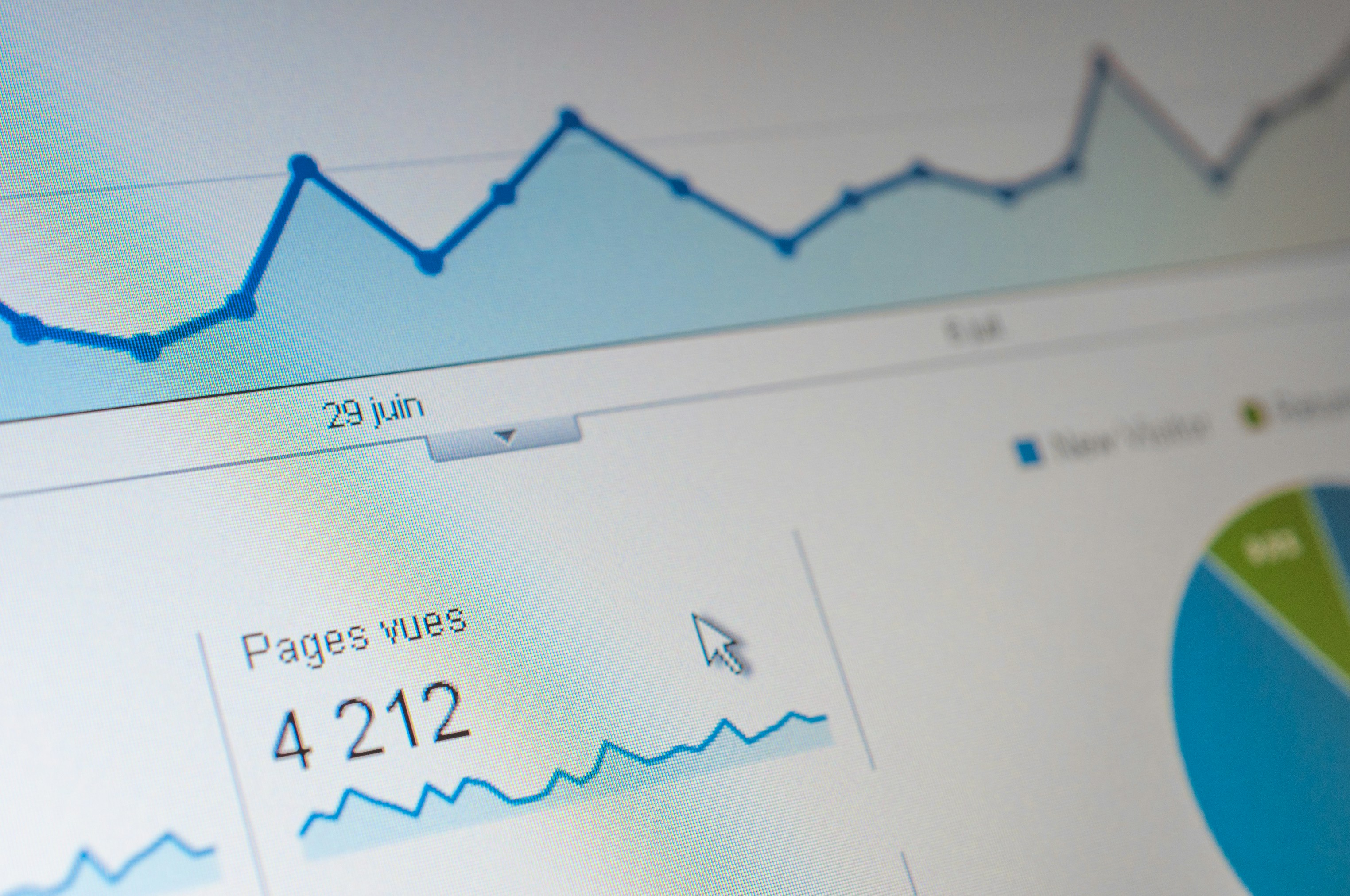
Introduction to Looker Studio and Chrome Device Version
Looker Studio, previously known as Google Data Studio, serves as a robust tool for data reporting and visualization. It enables users to transform disparate data sets into interactive dashboards and insightful reports. By harnessing the power of Looker Studio, businesses can effectively analyze performance metrics, visualize trends, and facilitate informed decision-making. The platform offers a user-friendly interface, coupled with powerful integration capabilities that support a wide range of data sources, making it an indispensable asset for data analysts and business intelligence professionals alike.
Choosing the right device for accessing Looker Studio can significantly influence the overall experience. In this context, Chrome devices stand out as an optimal choice for users. Chrome devices are designed with streamlined performance and security in mind, thus enabling a more efficient interaction with Looker Studio. Their lightweight nature allows for quick loading times and improved responsiveness when navigating through data visualizations and reports. Furthermore, the integration of Google services within the Chrome ecosystem ensures seamless connectivity with Looker Studio, allowing users to effortlessly combine data from multiple sources.
The significance of using Chrome devices extends beyond just convenience; they also provide a consistent and enhanced user experience. This is particularly evident in collaborative scenarios, where teams can work together on reports and dashboards in real-time without encountering compatibility issues or software conflicts. The reliance on web-based applications aligns perfectly with Chrome devices, making them a preferred choice for businesses looking to leverage the full potential of Looker Studio.
In summary, Looker Studio offers a powerful solution for data reporting and visualization, while Chrome devices enhance its usability and effectiveness. Understanding the interplay between these two elements can greatly benefit organizations aiming to optimize their data analysis capabilities.
Common Health Check Errors in Looker Studio
Health check errors in Looker Studio refer to instances where the application is unable to function correctly due to various technical glitches or configuration issues. These errors can significantly hinder the user experience and obstruct the analyses being conducted on Chrome devices. Understanding these health check errors is essential for users seeking to maintain optimal functionality and ensure that their data visualizations reflect accurate and timely insights.
One common error encountered in Looker Studio is the “Data Source Unavailable” error. This occurs when the application is unable to connect to the data source specified by the user. The reasons for this can vary from network connectivity issues to incorrect credentials or expired tokens. Users facing this issue should verify their internet connection, check data source settings, and ensure necessary permissions are granted.
Another prevalent health check error is the “Report Not Found” error. This happens when a user attempts to access a report that does not exist or has been deleted. This may also occur if the report is shared across different accounts without appropriate access rights. To resolve this, users should confirm the report’s existence and ascertain that their account has the necessary permissions.
The “Browser Incompatibility” error is particularly relevant for those using Looker Studio on Chrome devices. This situation emerges when the user’s browser version does not support the features of Looker Studio. It is crucial for users to ensure that their Chrome browser is updated to the latest version to avoid such compatibility issues.
Through addressing these common health check errors, users can enhance their overall experience and efficiency in utilizing Looker Studio on Chrome devices, ultimately leading to more effective data management and reporting practices.
Analyzing the Chrome Device Version Health Check Error
The Chrome Device Version Health Check error is a significant issue that can affect the operational efficiency of Looker Studio. Understanding the nature of this error—its causes, symptoms, and associated warnings—is essential for troubleshooting and improving performance.
One common cause of the Chrome Device Version Health Check error is outdated device software. If the operating system or the Chrome browser is not running the latest version, it can lead to conflicts with Looker Studio’s functionalities. This dissonance manifests as performance lags or unexpected behavior during data querying and visualization tasks. Therefore, ensuring that all software components are up to date is a critical preventive measure.
Symptoms of the Chrome Device Version Health Check error may include slower load times for reports, failure to render visualizations, or even complete application crashes. Users might also experience increased occurrences of buffering or stalling when interacting with dashboards. Such experiences can lead to frustration, particularly in a professional setting where time-sensitive data analysis is crucial.
Warnings associated with the Chrome Device Version Health Check error often suggest device compatibility issues. Messages indicating that certain features are inactive due to version conflicts should not be ignored. These alerts serve as crucial indicators that a device’s software might need immediate attention to restore optimal functionality.
Moreover, the impact of this error on the performance of Looker Studio cannot be understated. Delays or interruptions in data visualization can severely hinder decision-making processes. Users may find themselves unable to access critical insights, which can affect overall business operations. Addressing the Chrome Device Version Health Check error is therefore vital to ensure seamless interaction with Looker Studio.
Troubleshooting Health Check Errors
Troubleshooting health check errors in Looker Studio on Chrome devices involves a systematic approach to identify and resolve the underlying issues. First, begin by verifying your internet connection. A stable and reliable internet connection is essential for Looker Studio to function correctly. Try connecting to a different network or restarting your router to see if the issue persists.
If the connection appears stable, check for any updates to the Chrome browser or the Looker Studio application. Outdated software can lead to compatibility issues, including health check errors. Ensure that both your browser and the application are updated to the latest versions to minimize potential conflicts.
Additionally, clear your browser’s cache and cookies. Accumulated data can sometimes interfere with the performance of web applications like Looker Studio. Access the browser settings and remove unnecessary data to enhance overall performance and potentially resolve health check errors.
Another crucial step is to review any permissions set for the Looker Studio application. Ensure that the application has the necessary permissions, including access to network settings and any relevant device configurations. Adjust any restrictive settings that may impede proper functionality.
If these initial steps do not yield positive results, consider examining any browser extensions or plugins that might be affecting the operation of Looker Studio. Temporarily disabling these extensions can help determine if they are causing the health check errors.
Lastly, consulting the official Looker Studio documentation or community forums can provide additional insights and troubleshooting tips. Engaging with fellow users or support channels can lead you to targeted solutions and enhance your understanding of common health check issues.
Preventing Future Health Check Errors
Preventive measures are essential in ensuring that health check errors in Looker Studio do not frequently disrupt operations. One of the primary strategies is to keep all software updated. Regular software updates not only introduce new features but also repair existing bugs and improve overall performance. Many health check errors can arise from outdated versions of the Looker Studio or the browser. Users should enable automatic updates whenever possible or check for updates manually to ensure they are using the latest versions.
Configuring settings correctly within Looker Studio is another critical aspect of minimizing health check errors. Users should familiarize themselves with the various configuration options provided by Looker Studio. This includes setting up the correct permissions, ensuring data connections are properly configured, and making the necessary adjustments in security settings. Improper settings can lead to interruptions that manifest as health check errors, detracting from the user experience.
Device compatibility is also fundamental in preventing health check errors. As various devices can have different specifications and capabilities, ensuring that the devices used with Looker Studio meet the recommended specifications is vital. Users should refer to the official Looker Studio documentation to check for compatible browsers and devices. A mismatch in device capabilities can result in issues during the health check process.
Moreover, regular monitoring and maintenance of devices that run Looker Studio can preemptively identify potential issues before they escalate. This includes checking for malware, ensuring that the operating system is up-to-date, and managing storage space effectively. Implementing these best practices collectively enhances the functionality of Looker Studio and significantly reduces the likelihood of experiencing health check errors in the future.
Best Extensions and Tools for Chrome Devices
Enhancing the performance of Looker Studio on Chrome devices can significantly mitigate health check errors that users often encounter. A selection of reliable Chrome extensions and tools can streamline your experience and ensure optimal performance while working within this analytical platform. These tools not only improve efficiency but may also reduce the occurrence of connectivity and load issues.
One of the most recommended extensions is the Looker Studio Enhancer. This tool effectively optimizes the user interface, allowing for better navigation through reports and dashboards. An optimized UI ensures that users can swiftly access necessary data, thereby minimizing the load on the system and helping to prevent common health check errors.
Another valuable extension is the Chrome Cleanup Tool. This tool identifies and removes harmful software that can disrupt the functioning of Chrome and consequently hinder Looker Studio. By maintaining a clean browsing environment, users can ensure smoother operation and avoid potential interruptions that could lead to health check errors.
The Data Connector for Google Sheets extension is also beneficial, as it integrates seamlessly with Looker Studio. By allowing users to pull data directly from Google Sheets, this extension can minimize the processing time, thus reducing stress on Chrome devices. Such integration leads to more efficient data analysis and helps maintain stable connections that are less susceptible to errors.
Finally, utilizing a reliable browser extension for network monitoring can provide insights into latency or connectivity issues that might affect Looker Studio’s performance. Understanding network health enables users to proactively address potential disruptions. Overall, using these extensions can significantly enhance the performance of Looker Studio on Chrome devices, facilitating a more productive work environment and minimizing the occurrence of health check errors.
User Experiences and Case Studies
User experiences with Looker Studio’s Chrome Device Version Health Check errors can vary significantly, ranging from minor inconveniences to substantial roadblocks that hinder productivity. One common scenario encountered by users is the issue of connectivity errors that arise during the initial setup of Looker Studio on their devices. For instance, a small educational institution reported consistent health check failures during installation. Through collaborative troubleshooting efforts, the IT team determined that an outdated version of Chrome was the primary cause. After ensuring that all devices were updated, the health check was successful, allowing the users to access the functionalities of Looker Studio without further issues.
Another case presents a contrasting experience involving a large corporate firm that faced recurring errors even after performing initial troubleshooting steps. Despite multiple attempts to refresh the connection and update system settings, the health check continued to return errors. In this instance, the root cause was attributed to network restrictions that were not directly linked to Looker Studio but to the organization’s firewall settings. After adjusting these settings in consultation with their network security team, the health check completed successfully, and users regained access to the application.
However, not all experiences lead to resolution. A user working in government services reported persistent health check errors that, despite attempts at various troubleshooting methods, remained unresolved. This case underscores the importance of understanding that not every health check problem has a straightforward fix; intricate factors such as device compatibility and backend configuration can lead to continued challenges. This user’s experience serves as a reminder of the complexity involved in diagnosing and resolving Looker Studio errors, emphasizing the need for comprehensive technical support in such situations.
Getting Help and Support for Looker Studio Errors
When users encounter health check errors with Looker Studio, it is imperative to know where to turn for assistance. Various resources are available to effectively address these issues and enhance users’ experiences with Looker Studio.
One of the primary avenues for obtaining support is the official customer service offered by Looker Studio. Users can reach out to the support team through their help center, which boasts various services tailored to resolving common issues. It is essential to provide as much detail as possible regarding the error encountered when contacting customer support. This includes error codes, screenshots, and steps that led to the issue, all of which can expedite the troubleshooting process.
In addition to direct support, a variety of online forums and community resources exist where users can seek assistance from fellow Looker Studio users. These forums often contain valuable discussions regarding health check errors, including solutions that other users have found effective. Websites like Stack Overflow and technology-specific discussion boards frequently feature posts dedicated to Looker Studio errors, enabling users to learn from the experiences of others.
Moreover, the rggupta website provides a wealth of information revolving around troubleshooting Looker Studio issues. Users can navigate to specific sections dedicated to health check errors where comprehensive guides and FAQs are available. For those who may require one-on-one assistance, the contact information provided on the rggupta site is invaluable, allowing users to seek professional advice tailored to their specific concerns.
By leveraging these resources—customer support, community forums, and specialized websites—users can effectively navigate the challenges posed by Looker Studio health check errors and enhance their overall functionality.
Conclusion and Takeaways
Understanding Looker Studio Chrome Device Version health check errors is crucial for users and developers alike. Throughout this blog post, we have explored the various aspects of these health check errors, including their common causes, the troubleshooting methods, and best practices for prevention. Addressing these issues proactively can lead to improved accuracy in data visualization, enhanced user experience, and ultimately, more reliable reporting capabilities.
As a summary, we highlighted the significance of regularly monitoring device health check statuses in Looker Studio. The proactive identification of errors can help in minimizing downtime and ensuring a seamless experience for users. We also discussed various strategies for mitigating these errors, including periodic software updates, optimizing device settings, and utilizing diagnostic tools to troubleshoot potential issues.
Engaging with the resources mentioned throughout this blog can enhance your understanding and management of health check errors. Readers are encouraged to explore these tools extensively and share their experiences dealing with Looker Studio health checks in the comments section. This exchange of information can foster a supportive community where users assist one another in navigating the challenges associated with these errors.
In conclusion, seeking out solutions to health check errors in Looker Studio is vital for maintaining operational efficiency. Through attentive observation and timely intervention, users can ensure their data visualization capabilities remain robust. We invite you to remain informed, engage with the provided resources, and contribute to discussions that can yield a greater understanding for all stakeholders involved in Looker Studio’s dynamic ecosystem.